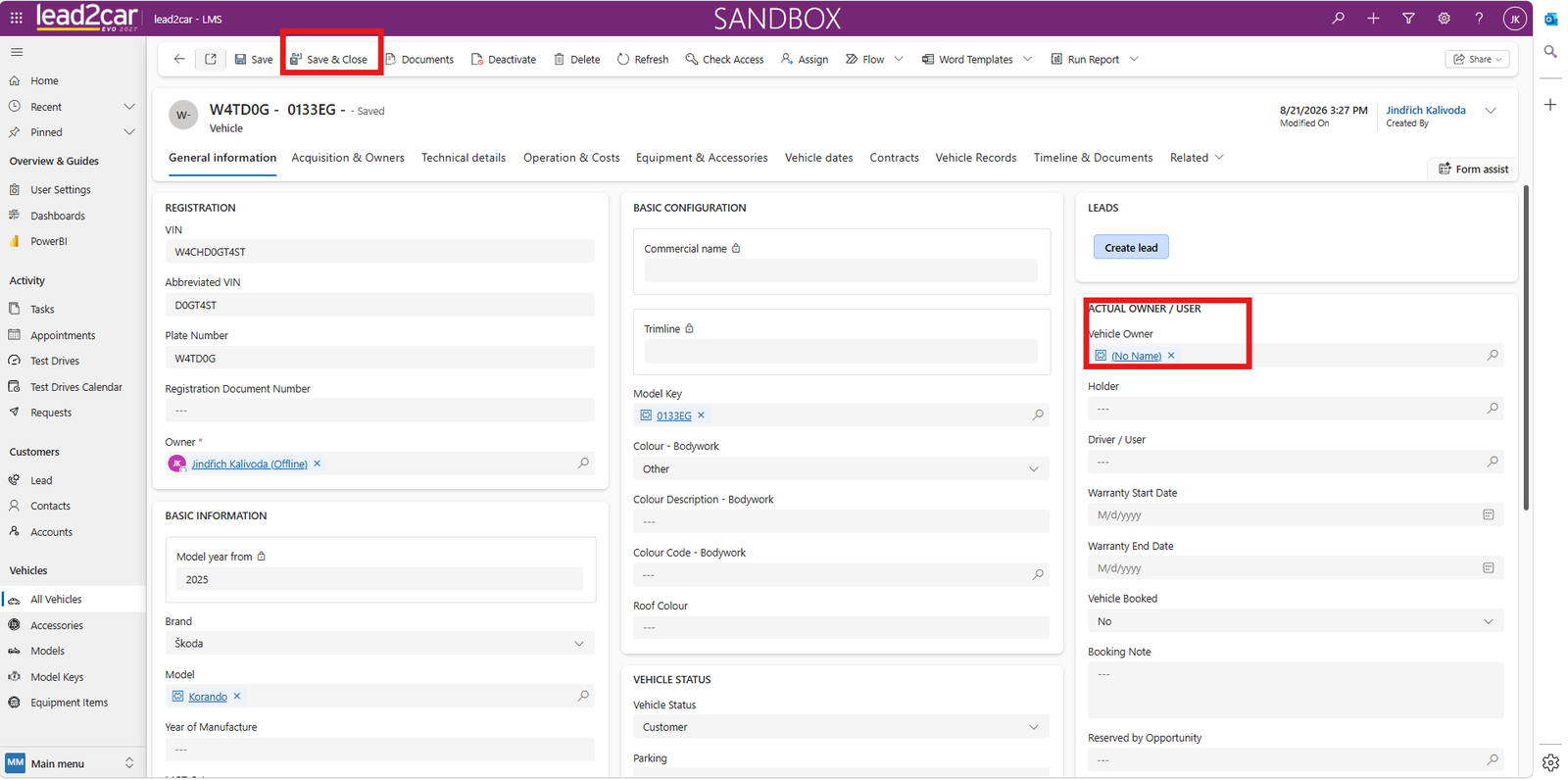
Menu Location
The All Vehicles section serves as a database of vehicles in stock as well as vehicles that already have an owner. It contains detailed information about individual vehicles.
Vehicle records are automatically transferred to lead2car from the DMS or another connected external system.
To view vehicle records, select All Vehicles from the left navigation menu. A complete list of available vehicles is displayed.
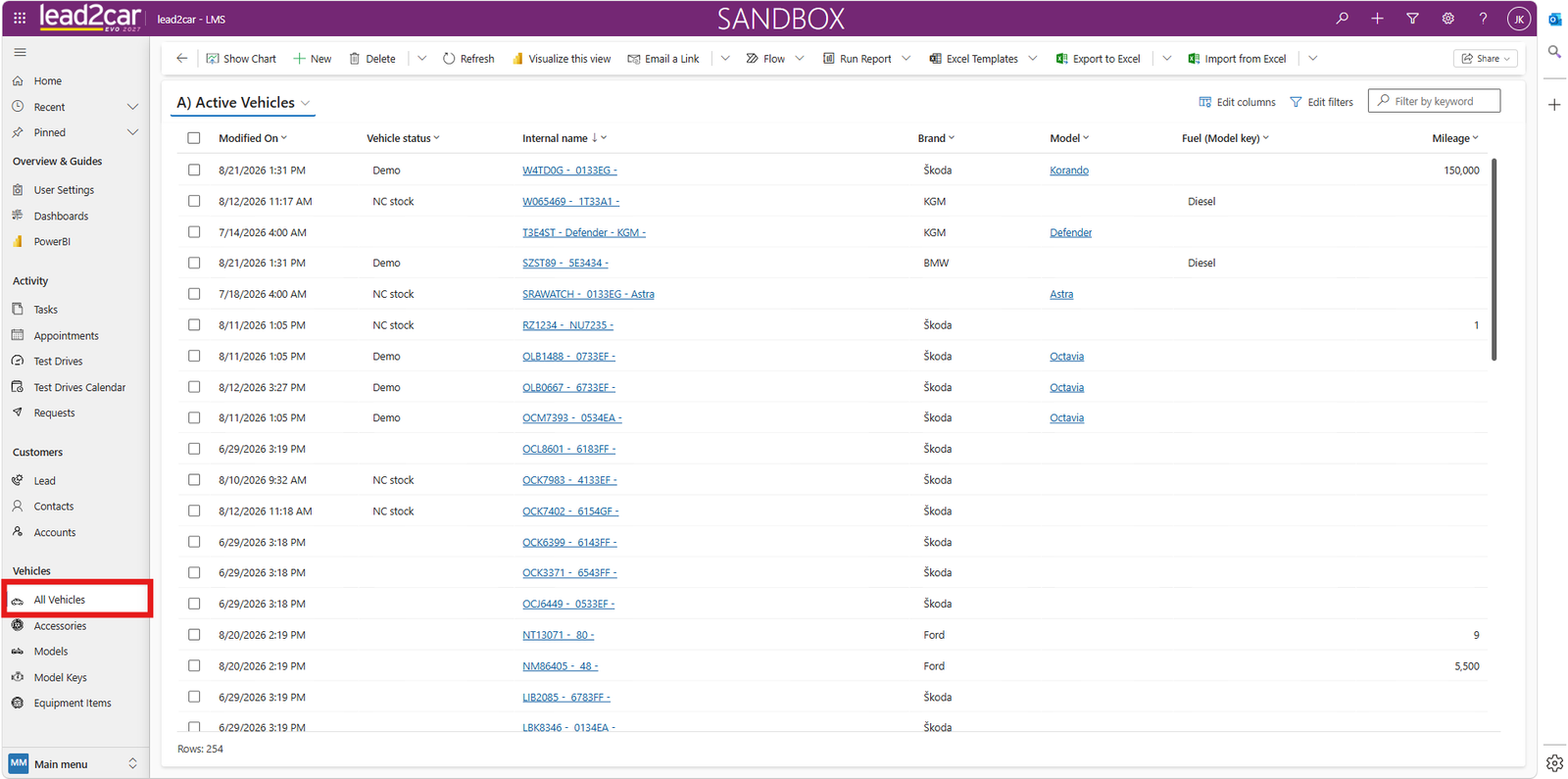
Viewing Vehicle Information
Open any vehicle from the list to view detailed vehicle information and related records.
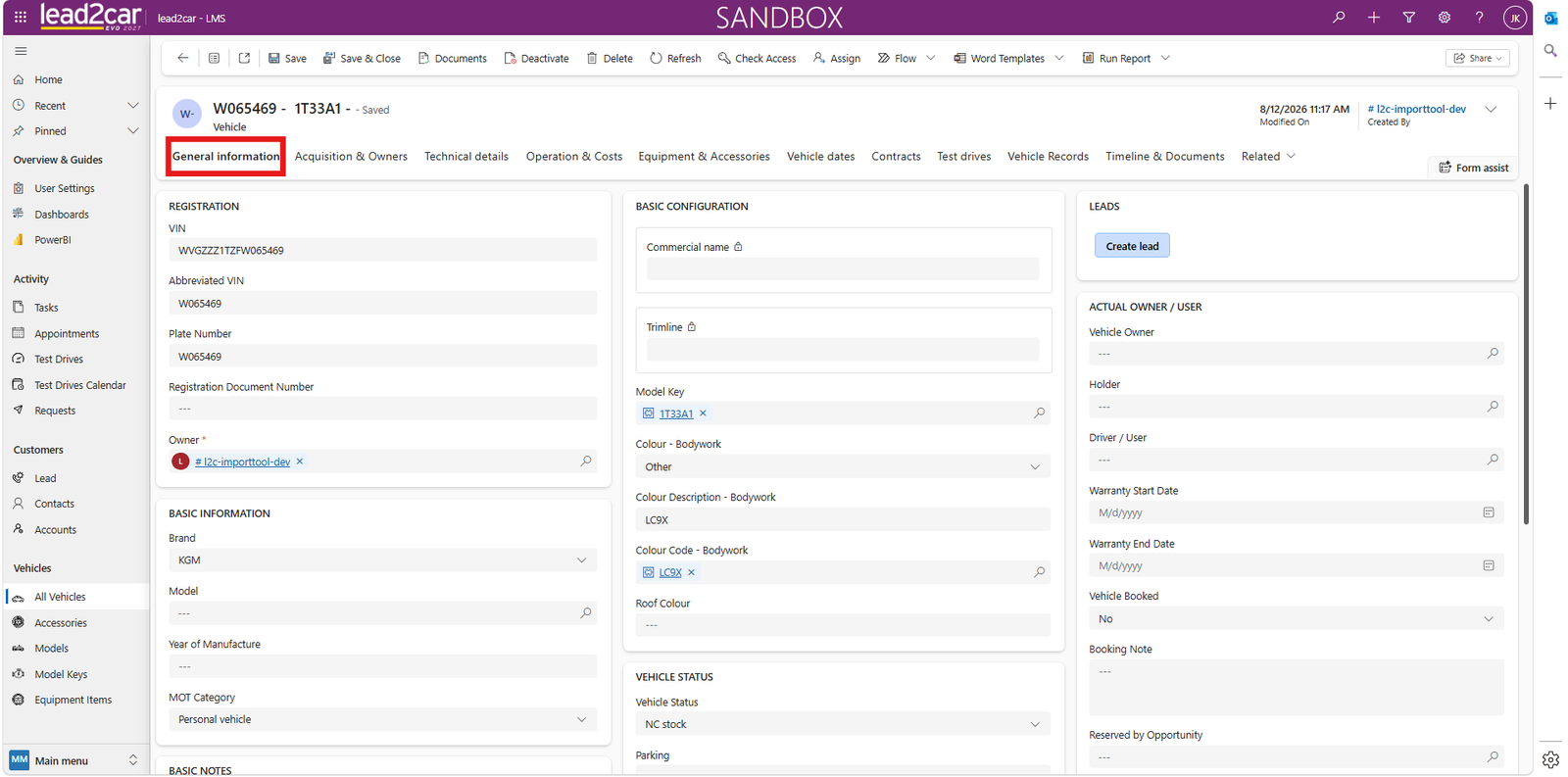
The vehicle record provides a central overview of its identification, configuration, status, ownership and other related information.
Important Vehicle Data
Basic information includes the vehicle make and model as well as details such as:
- VIN
- Basic configuration
- Vehicle status
- Owner
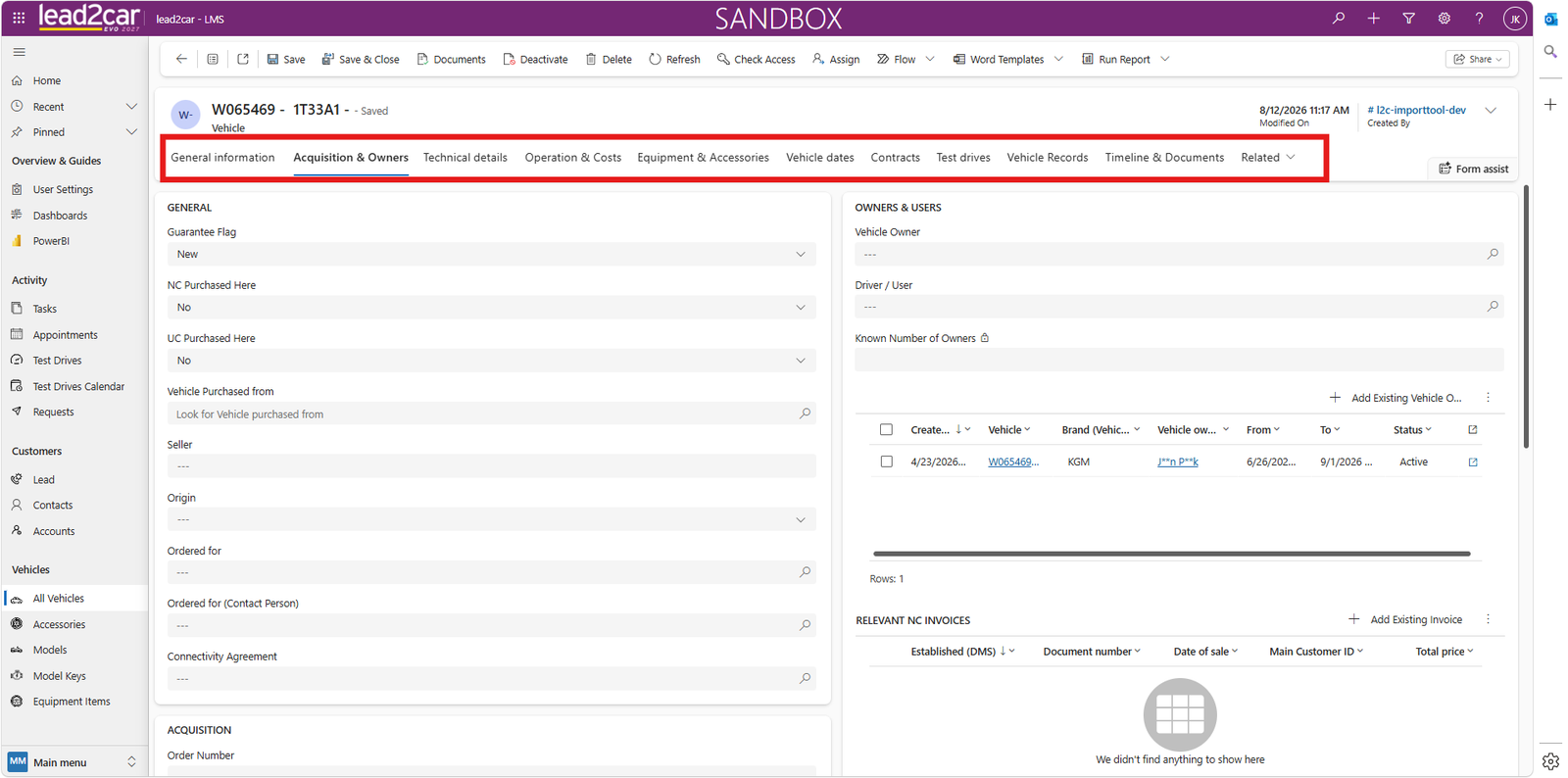
It is also important to check the other sections, including:
- Acquisition and Owners
- Technical Details
- Finance and Operations
- Other available vehicle information
Searching and Updating Vehicles
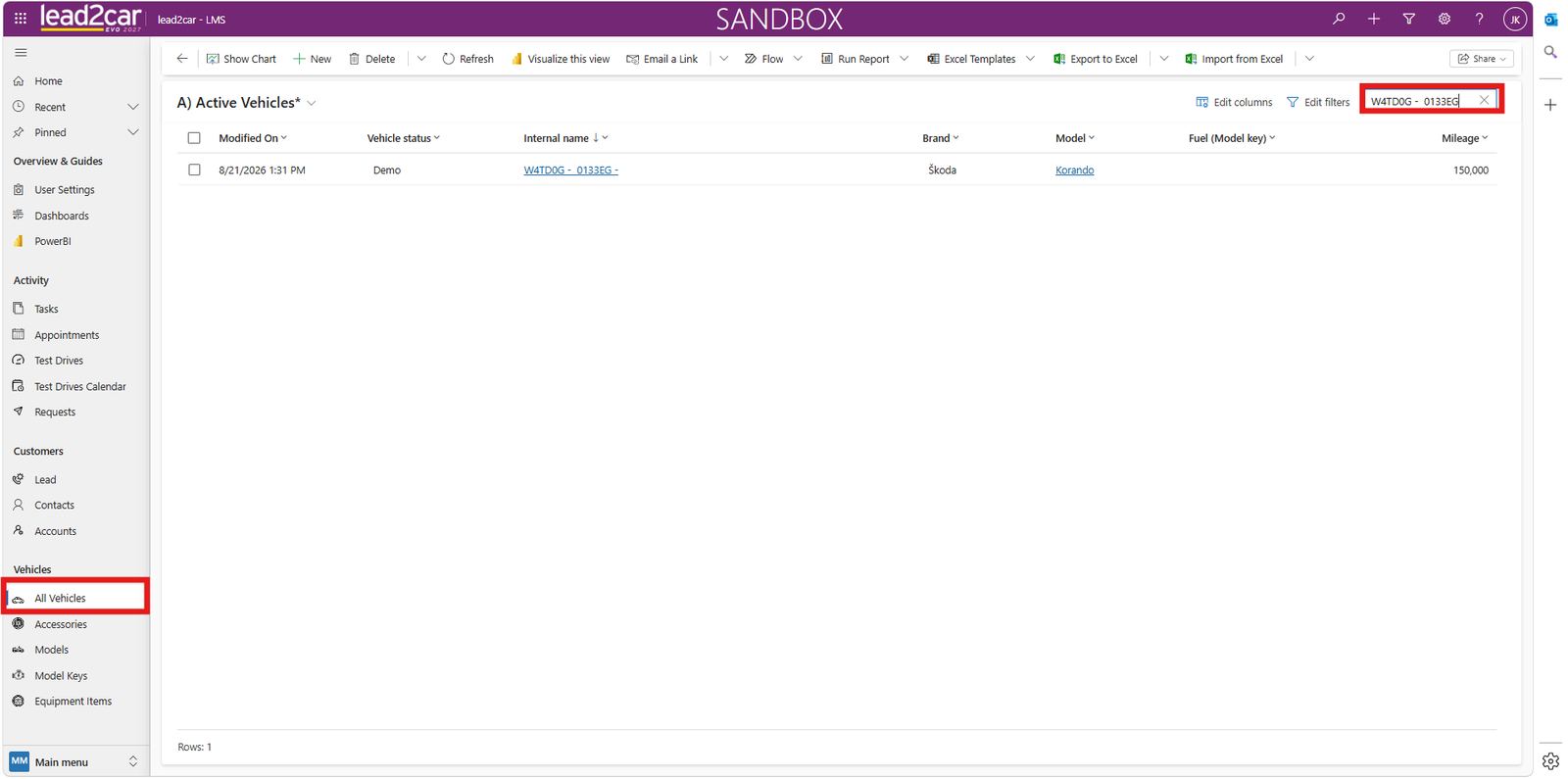
Vehicle records can be searched using the filters and search fields available in the vehicle list.
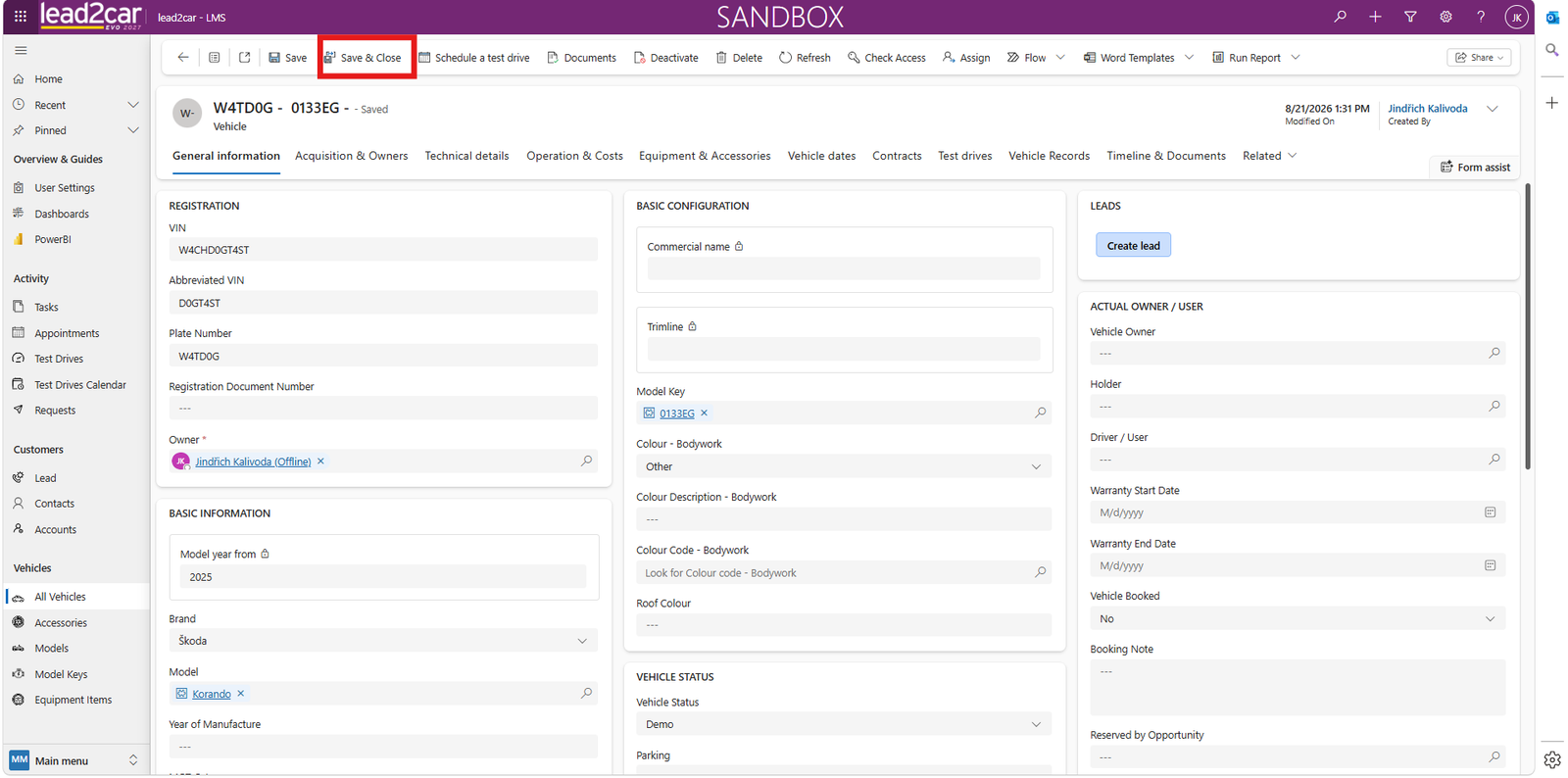
Depending on user permissions and the available fields, vehicle information can be updated directly within the vehicle record.
After making changes, save the vehicle record.
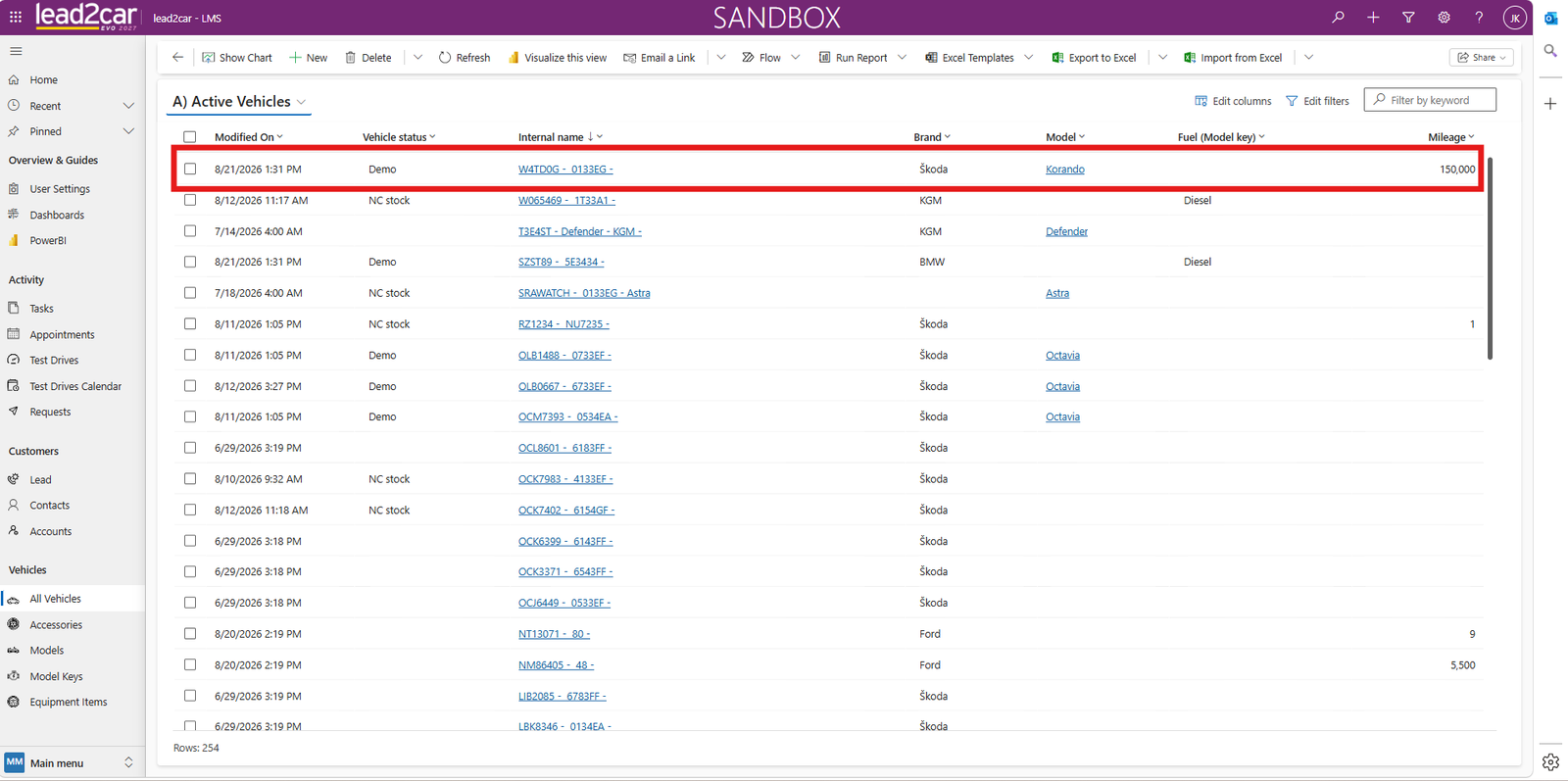
Changing Ownership after a Sale Outside the DMS
If a vehicle sales document is issued outside the DMS or Helios, lead2car does not automatically update the vehicle owner. In such cases, the ownership relationship must be created manually.
Open All Vehicles from the left navigation menu. In the list of active vehicles, search for the vehicle by its license plate number using the search field in the upper-right corner.
Scroll down in the vehicle form to the Vehicle Status section. Change the current value in the Vehicle Flag field to Customer-Owned.
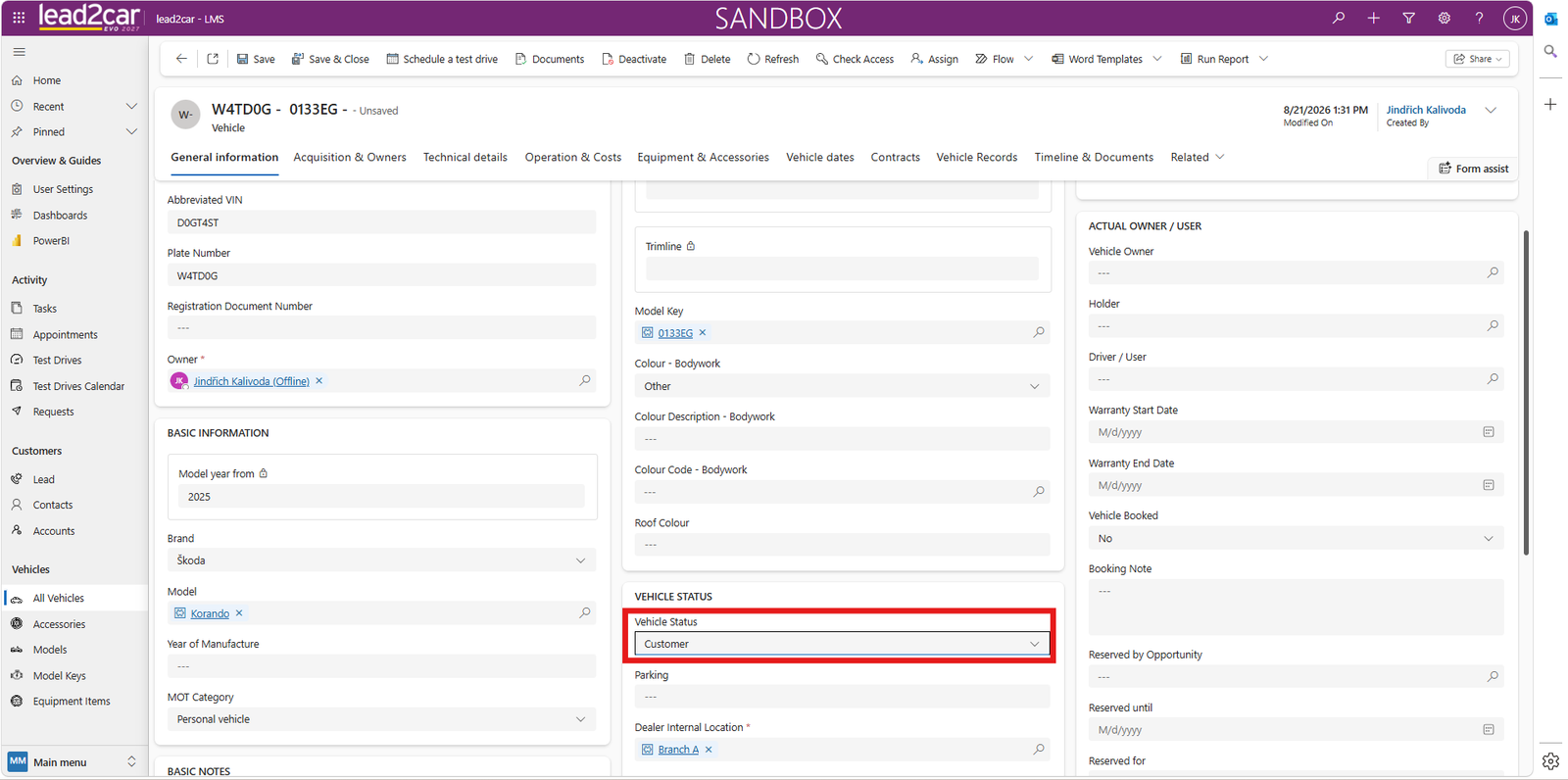
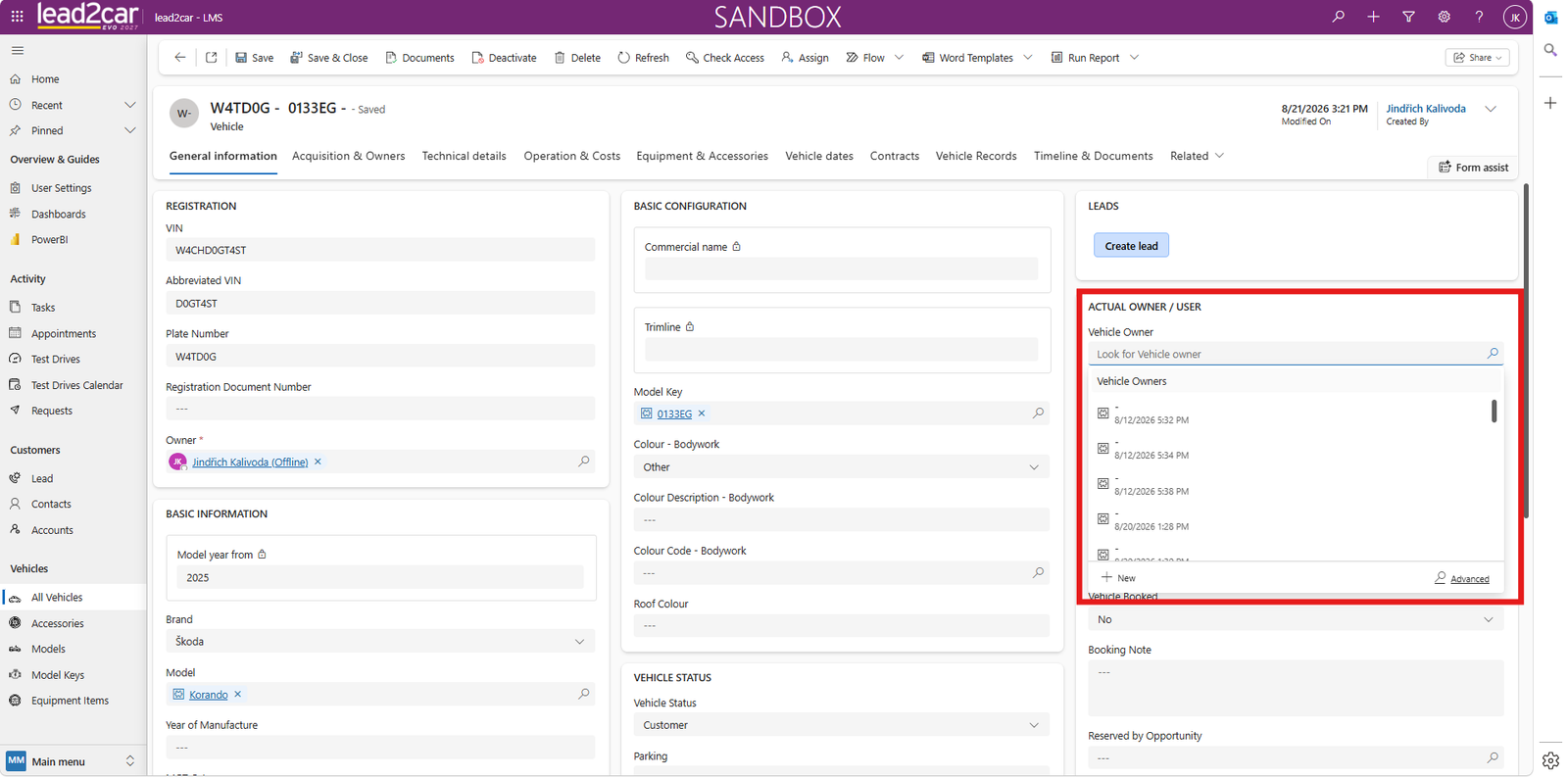
After changing the flag, the Current Owner / User section appears in the upper-right part of the form. Open this section and select + New Vehicle Owner to create a new ownership relationship.
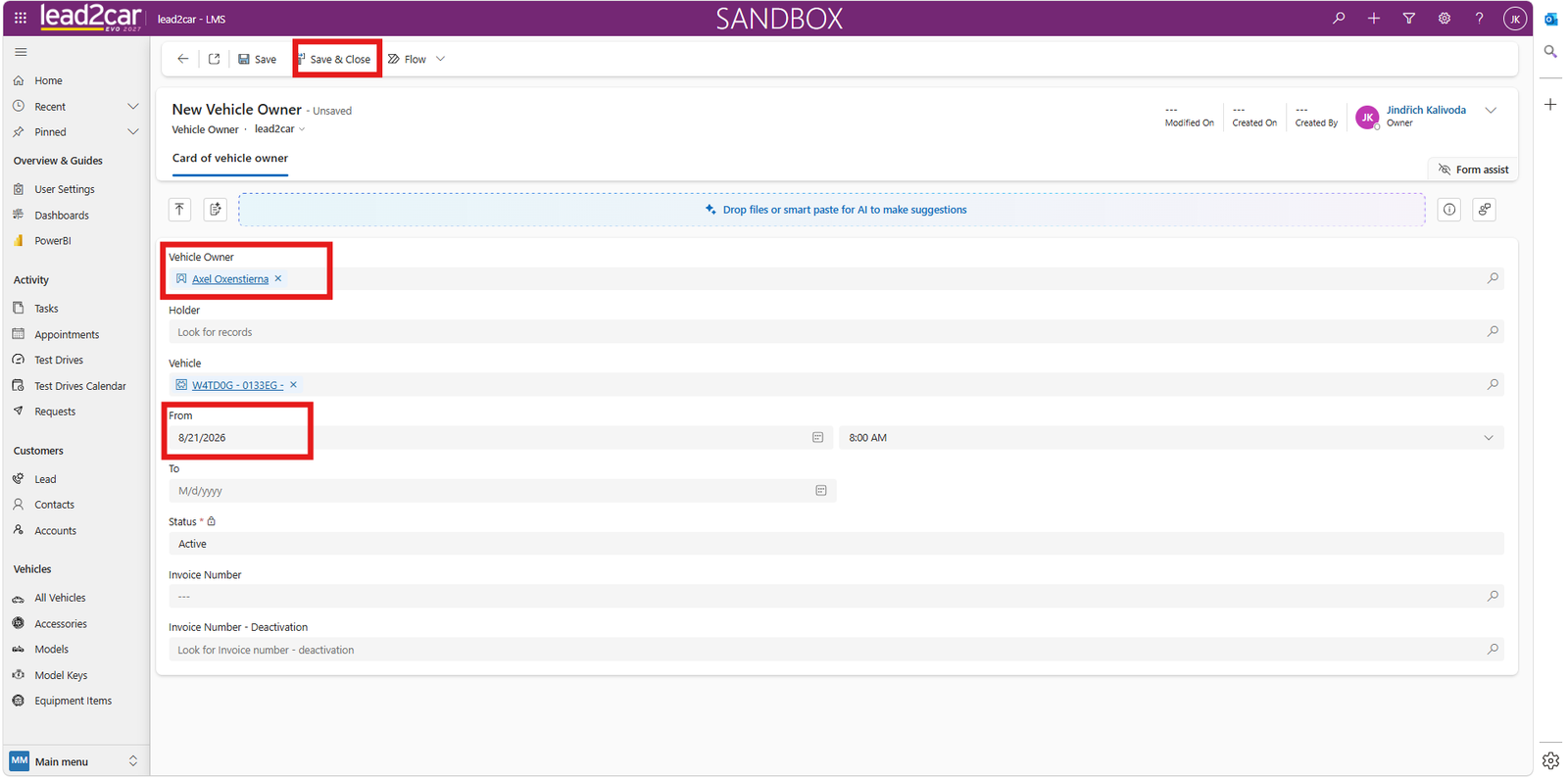
A blank form for a new vehicle owner opens. Based on the sales document, enter:
- The customer's name
- The issue date, which represents the start of the ownership relationship
- The vehicle holder, if required
After completing the information, save and close the form using the button in the top command bar.
In the Vehicle Owner field, select the newly created ownership record. Enter the beginning of the customer's surname and select the correct owner from the suggestions.
Save and close the vehicle record using the button in the top command bar.