Create Lead
To create a new lead, open the Leads section from the navigation menu.
Click New in the command bar.
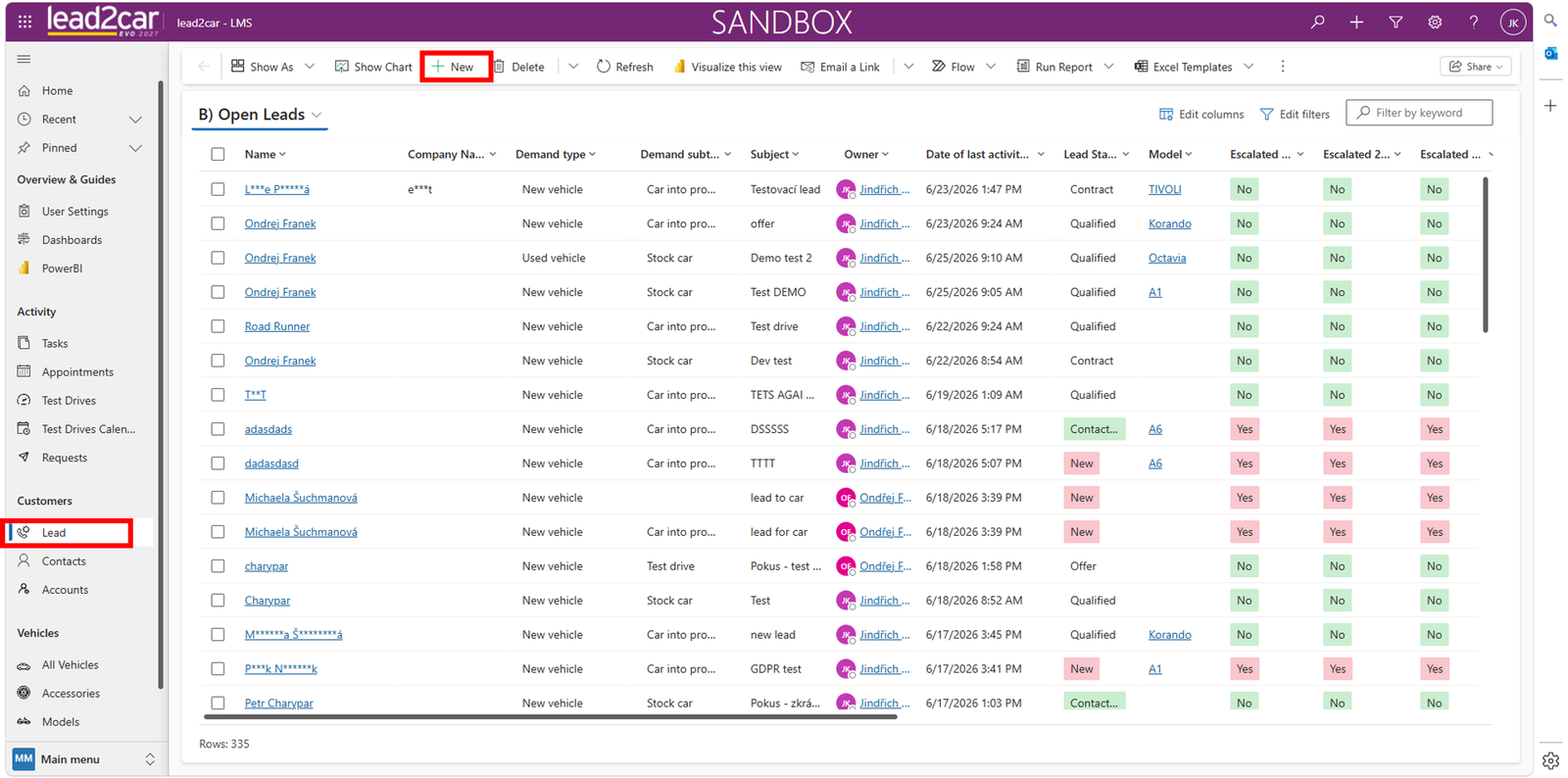
A new form opens. Enter all required information marked with an asterisk (*).
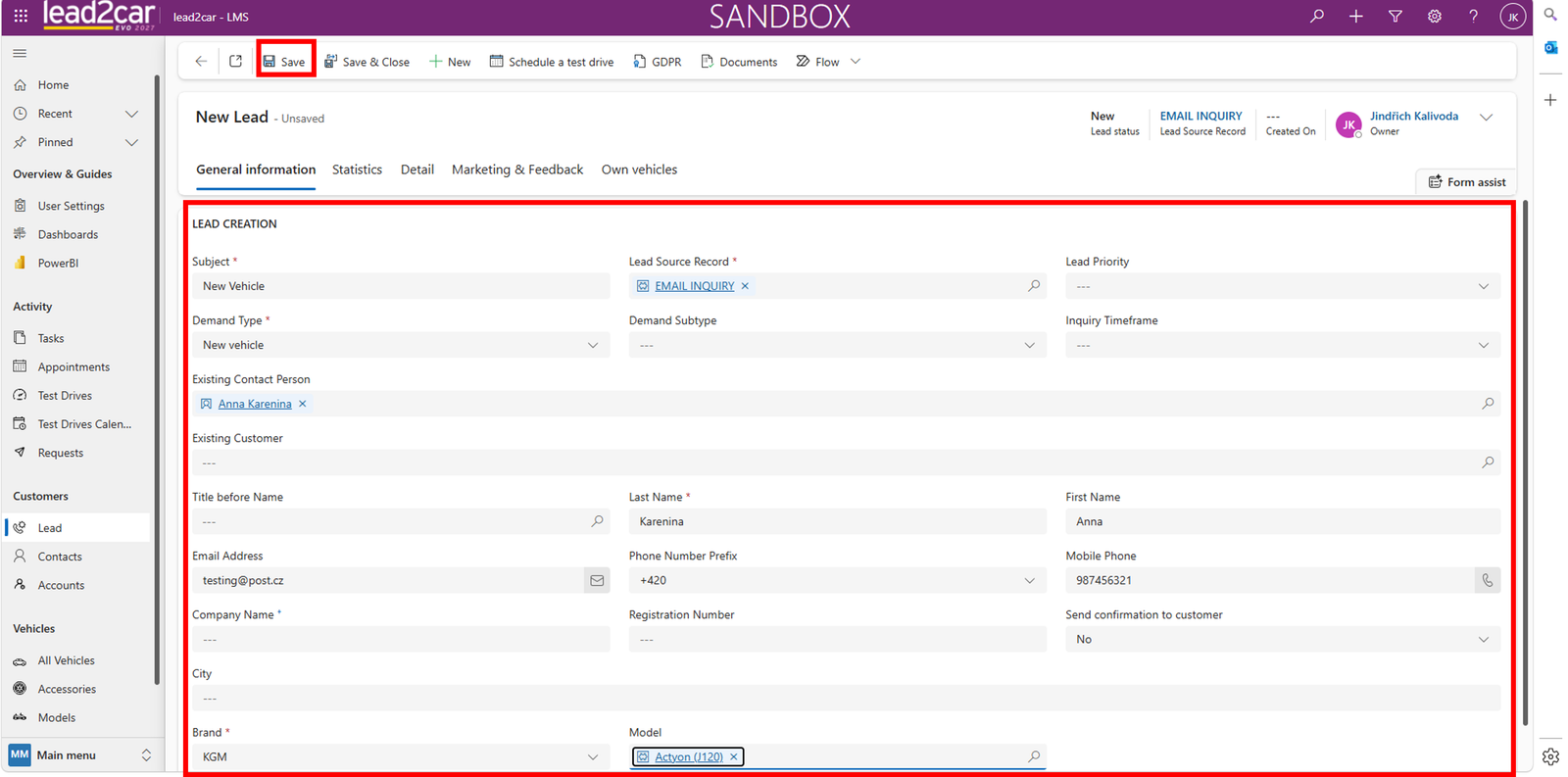
Basic information:
- Subject – type of request
- Lead Source Record – source of the lead
- Demand Type
- Demand Subtype
Customer details:
- Existing Contact Person
- Existing Customer
- First Name and Last Name
- Phone number
Vehicle information:
- Brand
- Model
Click Save to create the lead.
Lead Details
After saving, the lead detail form is displayed.
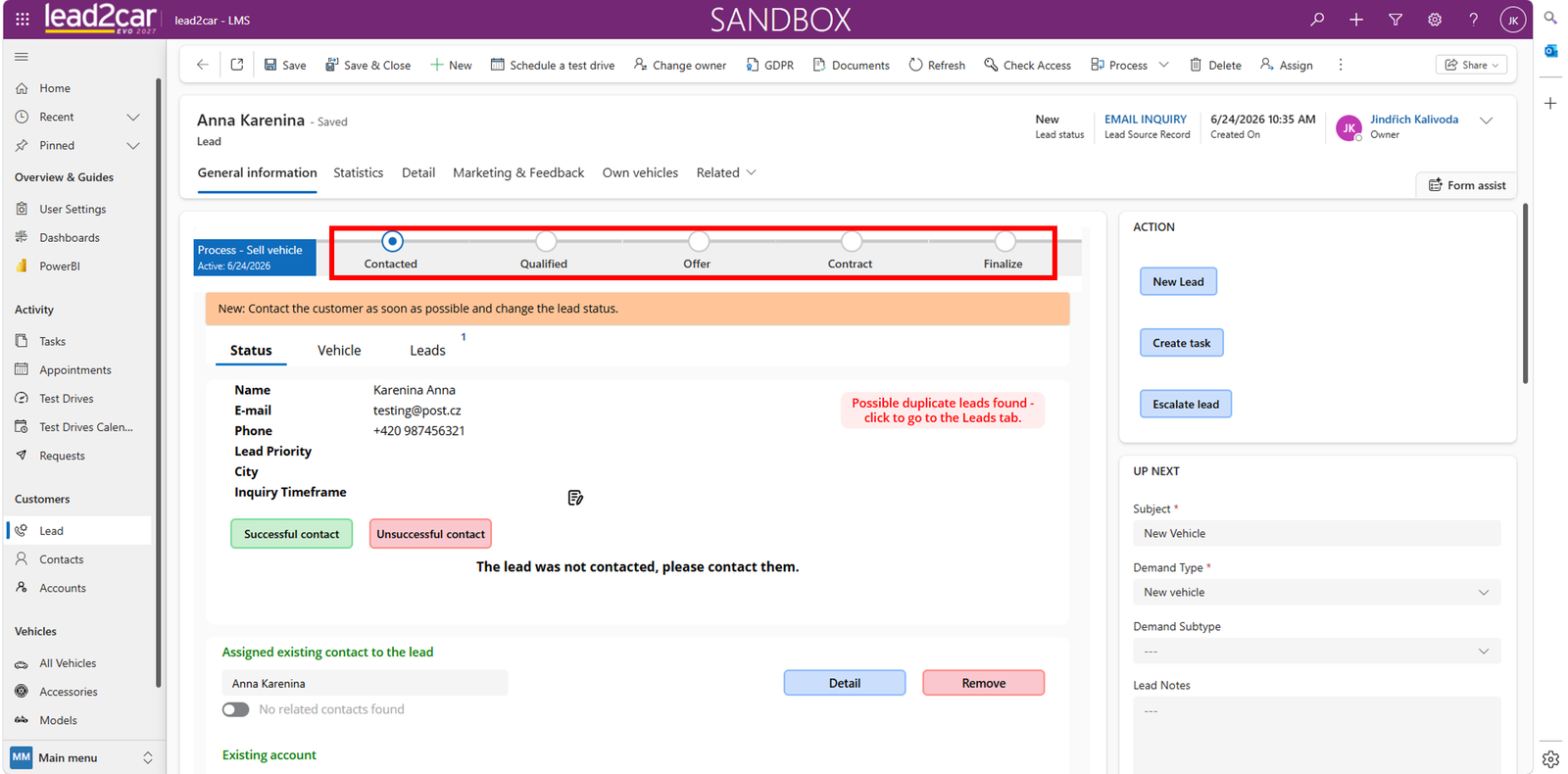
The lead is managed through a pipeline with the following stages:
- Contacted
- Qualified
- Offer
- Contract
- Finalize
At the beginning, the lead is in the New status.
Contacting Lead
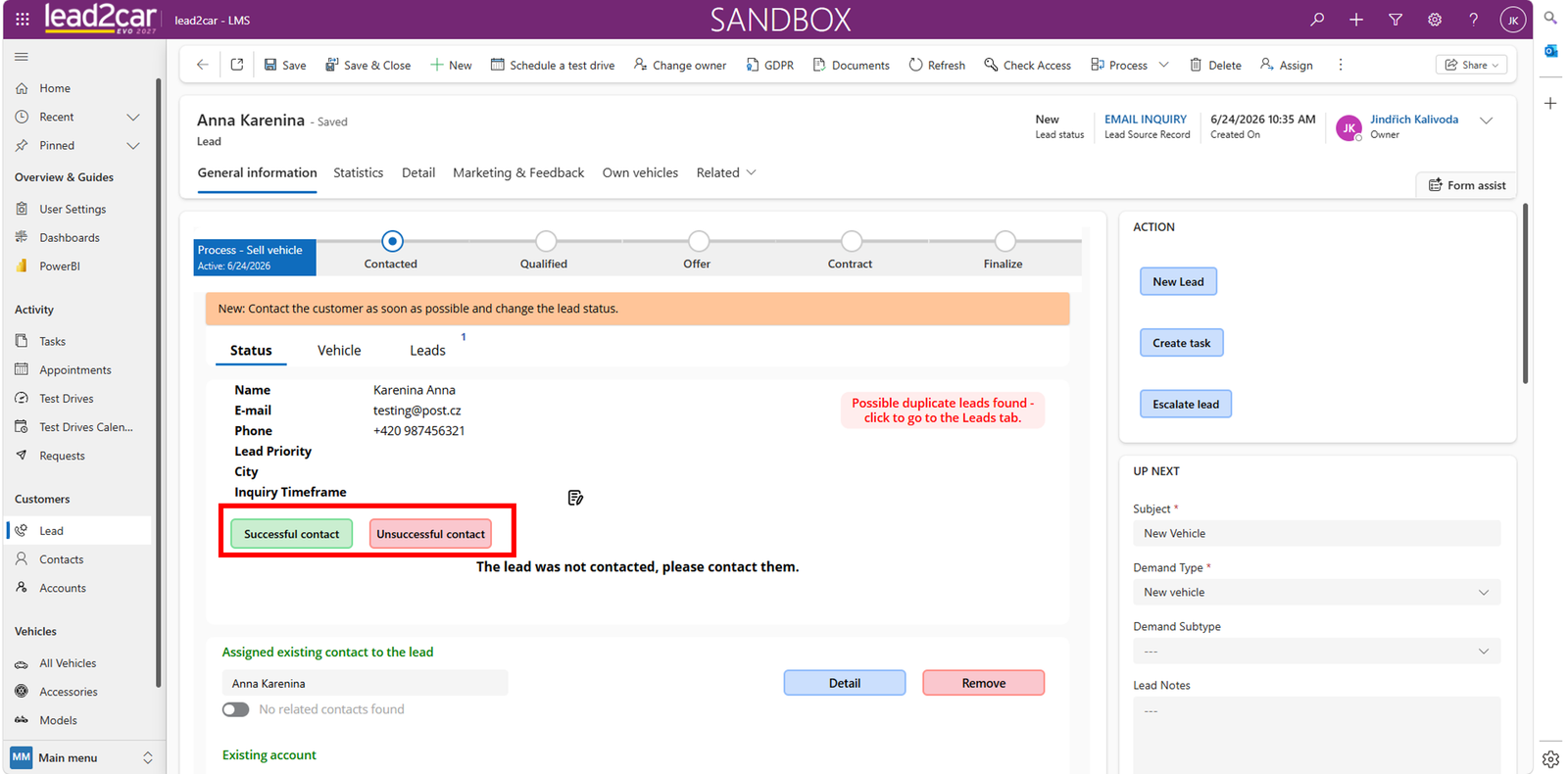
The first step is to contact the customer.
To record the contact in the system, use the Successful contact button if you managed to contact the customer, or the Unsuccessful contact button if you could not reach the customer.
Enter details of the contact:
- Date and time
- Type of contact, for example a phone call
- Notes
Next step decision:
- Remind next contact
- Save without reminder
- Qualify
- Disqualify
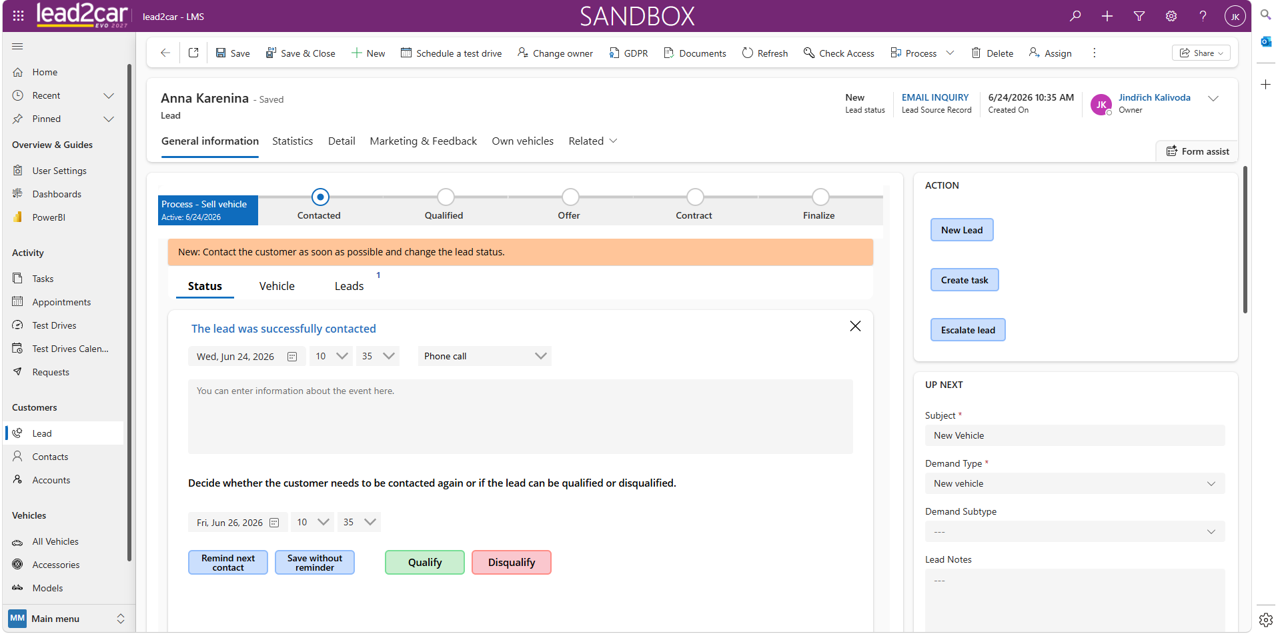
If the lead is qualified, it moves to the next stage.
Offer Stage
In this stage, an offer is created and sent to the customer.
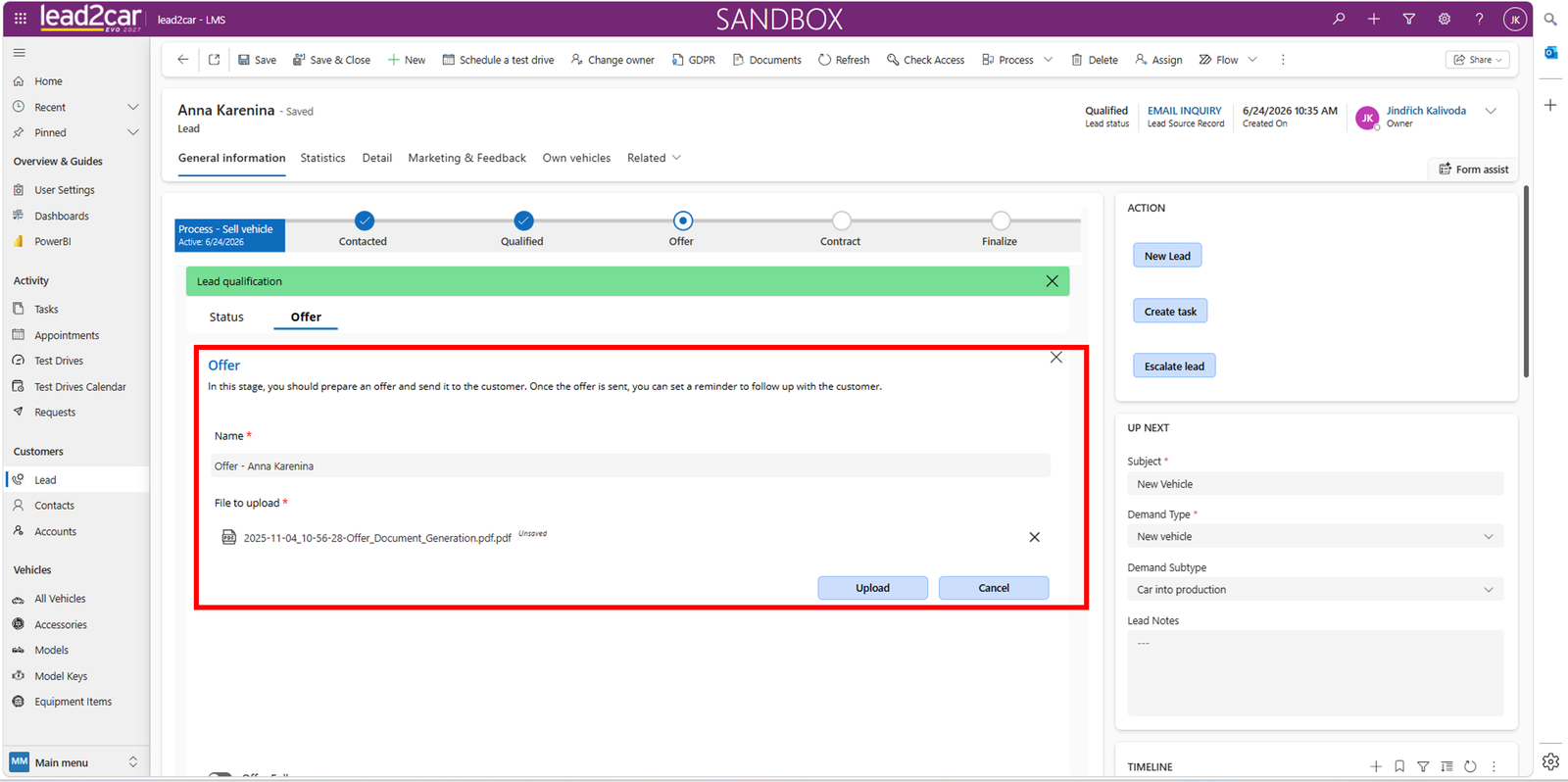
Steps:
- Enter the offer name
- Upload the offer document
Click Upload to attach the document.
Additional options include selecting customer interests such as:
- Accessories
- Insurance
- Financing
- Service bundles
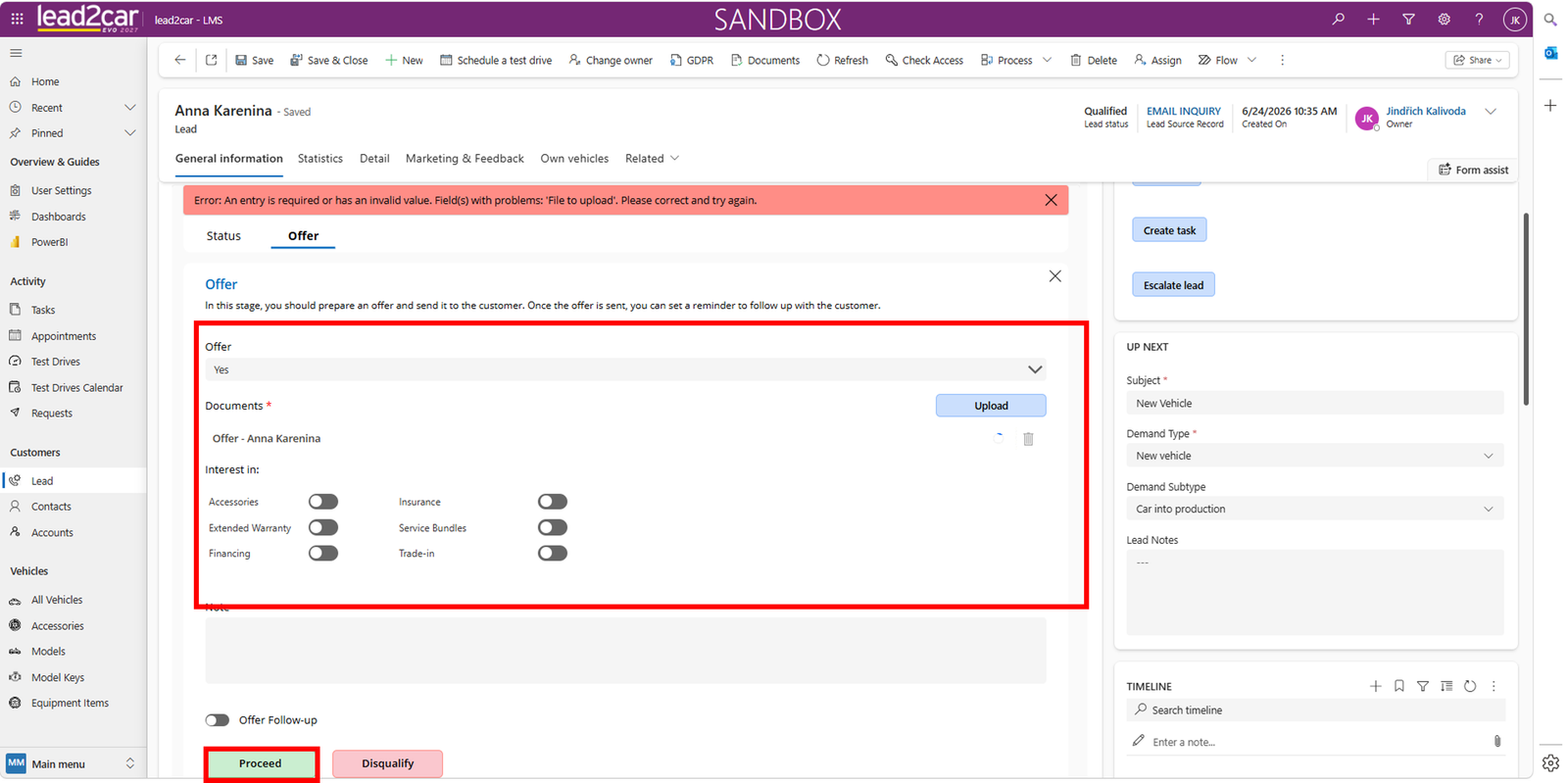
Click Proceed to continue.
Contract
In this stage, the contract with the customer is confirmed.
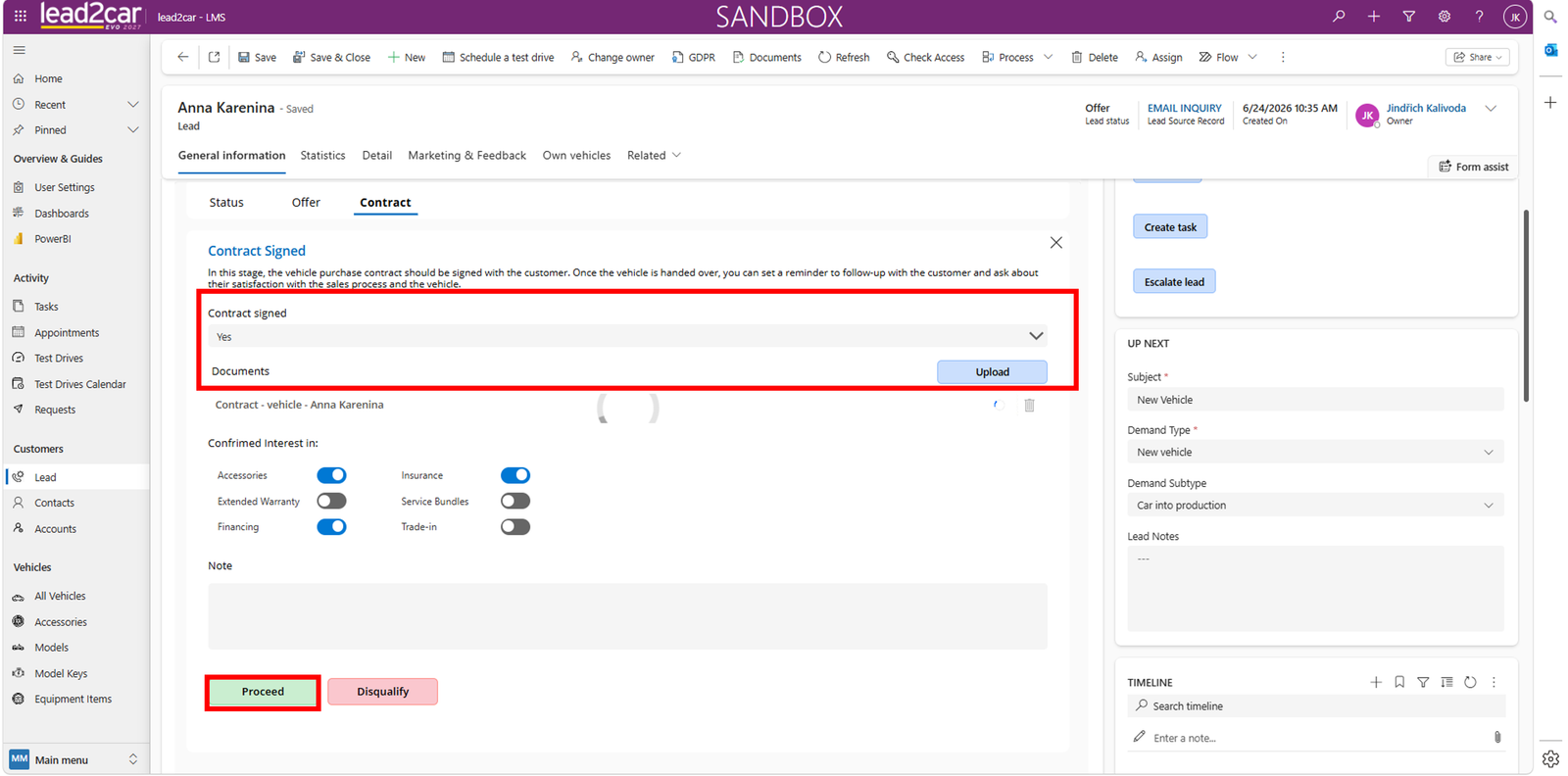
Upload the signed contract document.
- Confirm contract signed
- Upload document
After completion, click Proceed.
Vehicle Handover and Finalizing
In the final stage, the process is completed after vehicle handover.
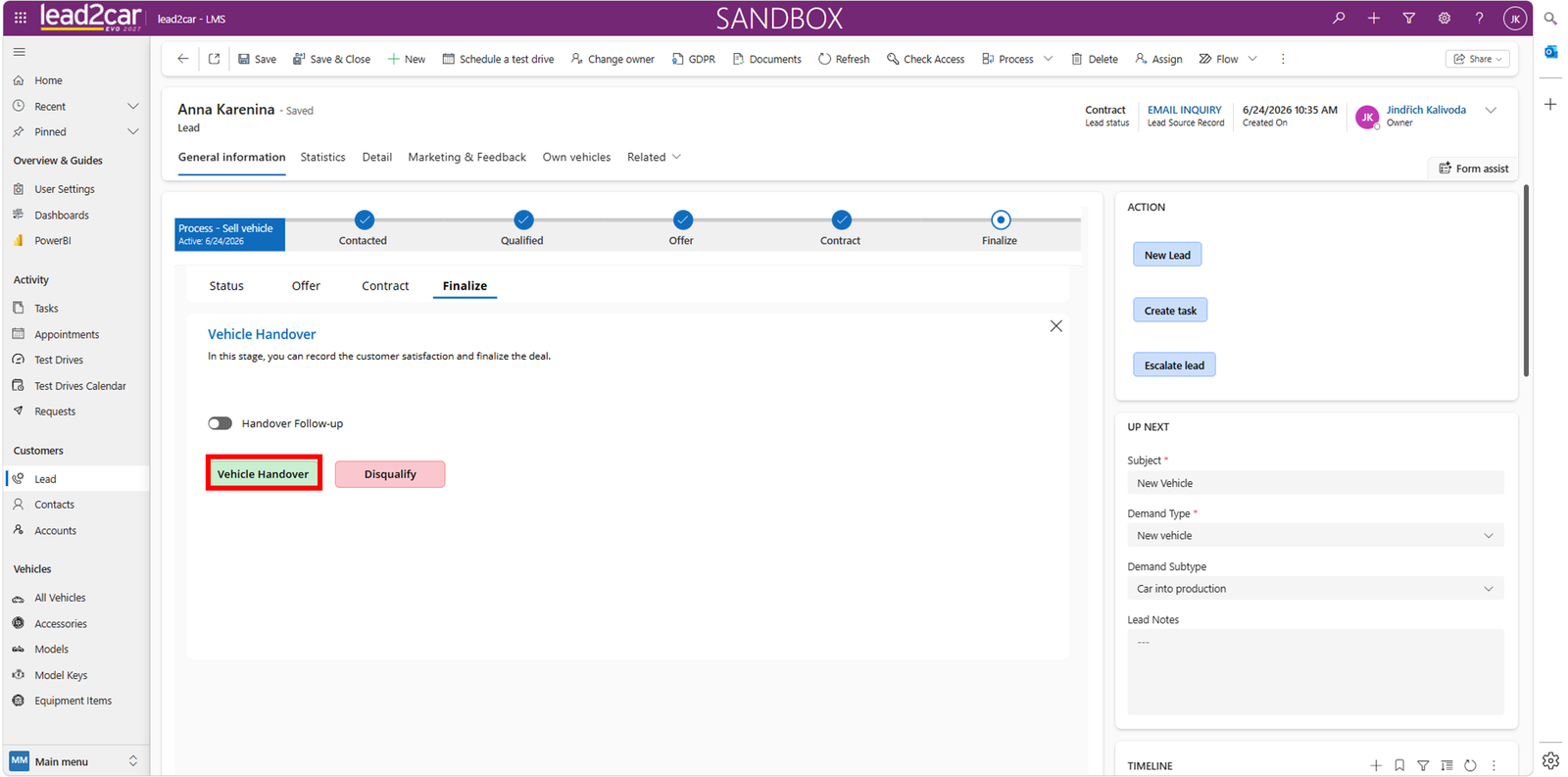
Enter final details:
- Customer satisfaction
- Optional follow-up
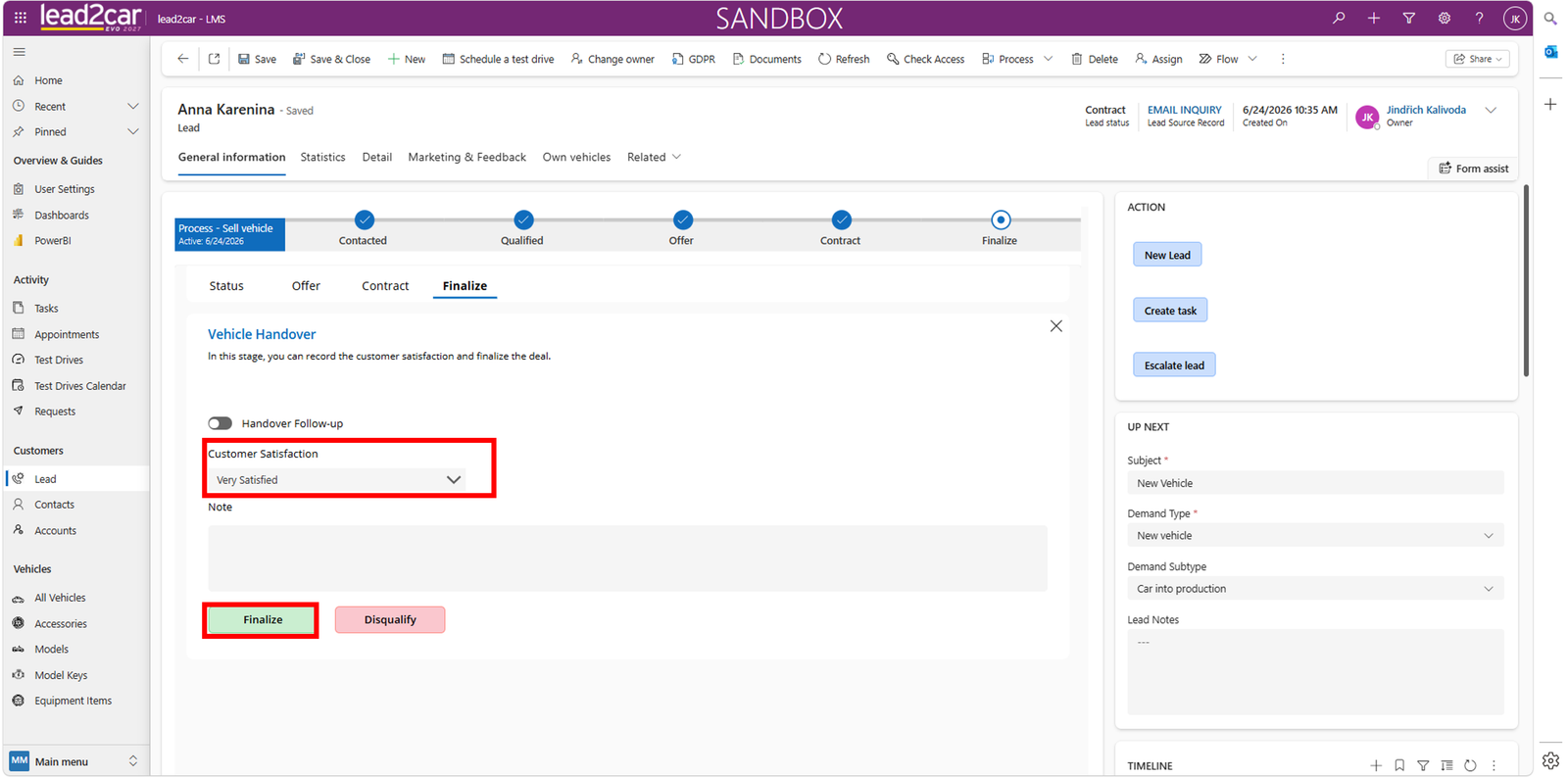
Click Finalize to complete the process.
After finalization, the lead is closed.