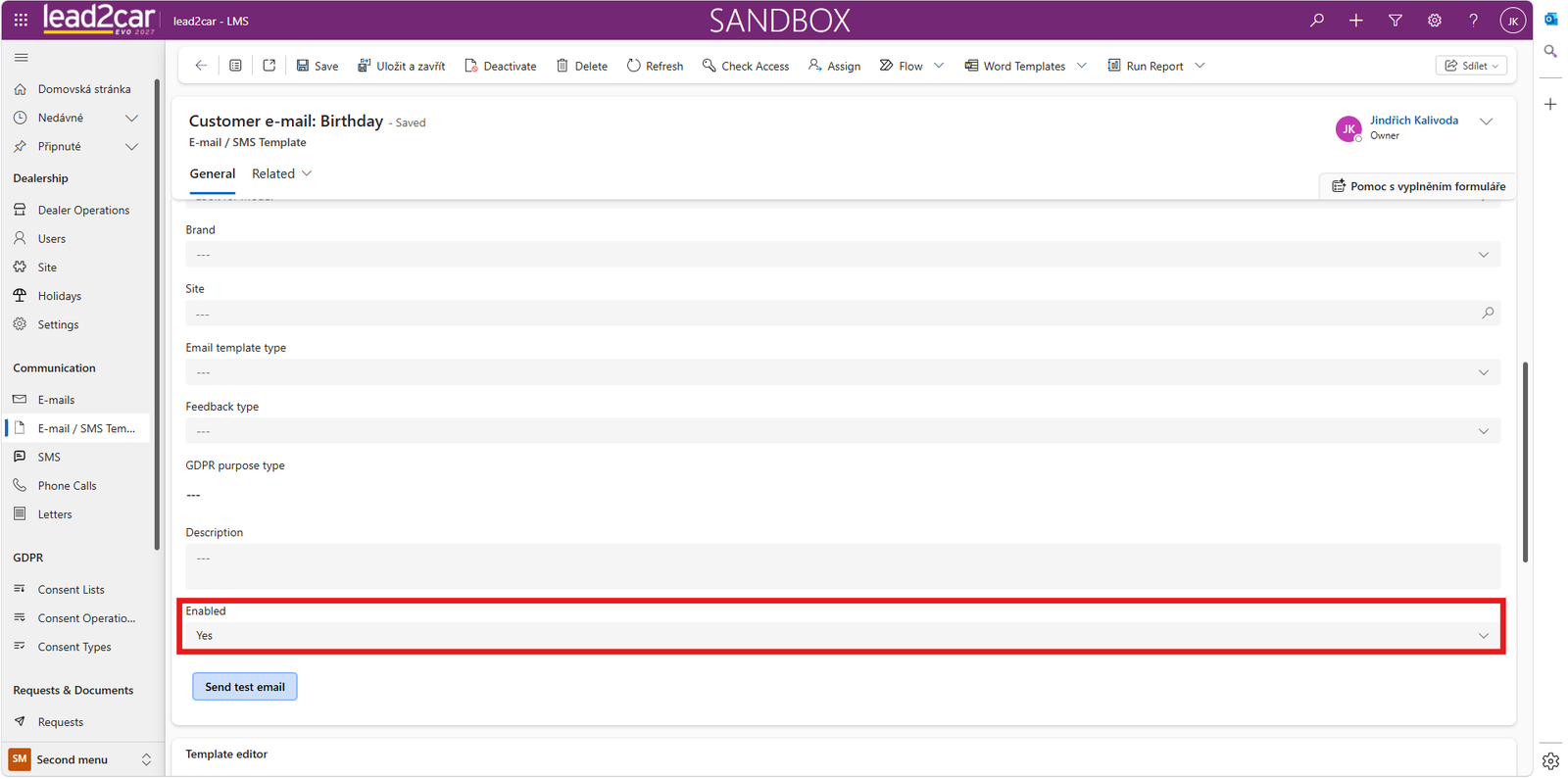
Email Templates Overview
The Email Templates section contains templates used for automated customer communication.
Customer email templates are available in all languages relevant to the dealership users.
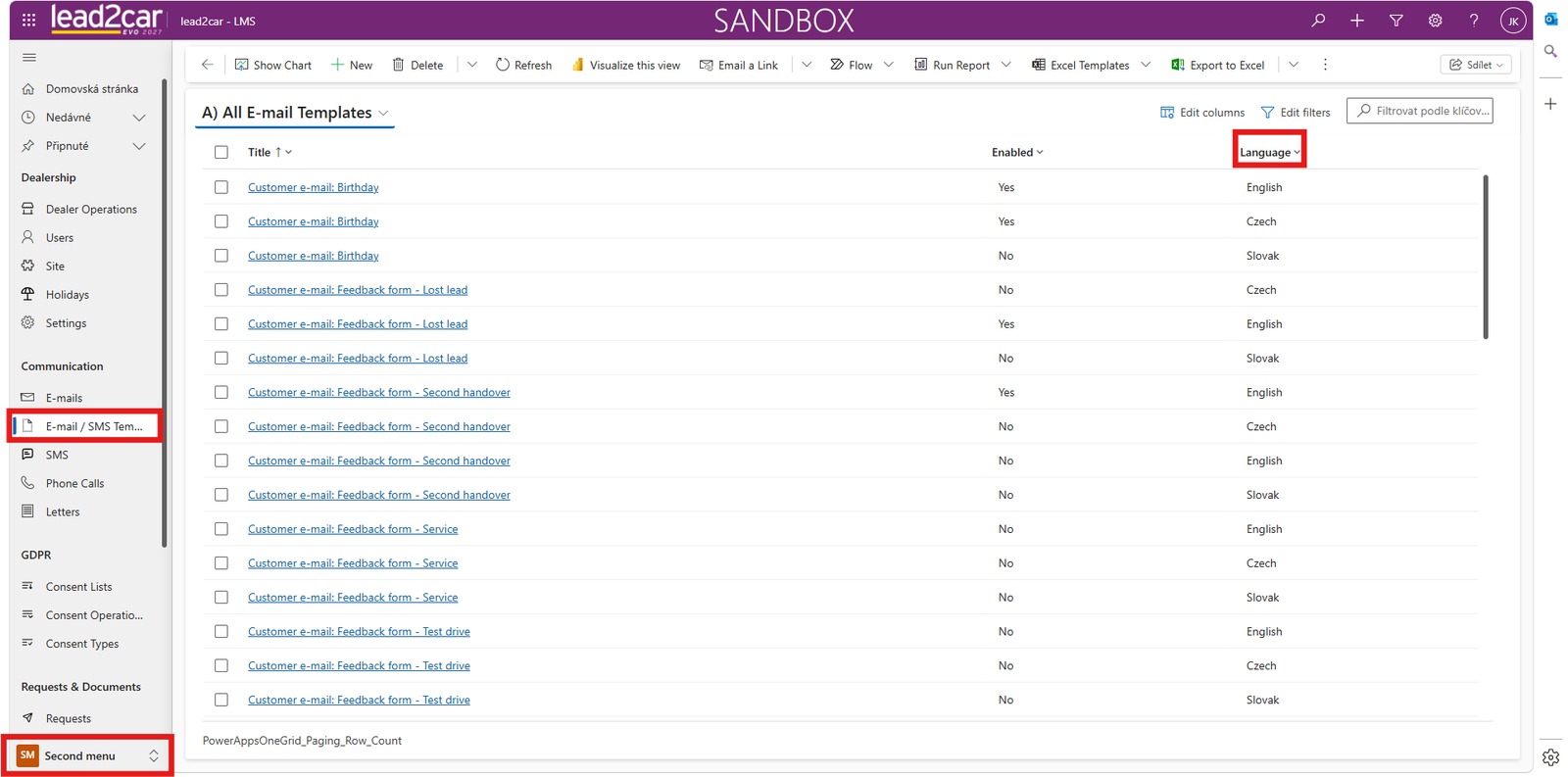
Opening an Email Template
Open the required template from the list, for example the birthday email template.
The template record displays the template language and its current configuration. The configuration process is the same for each language version.
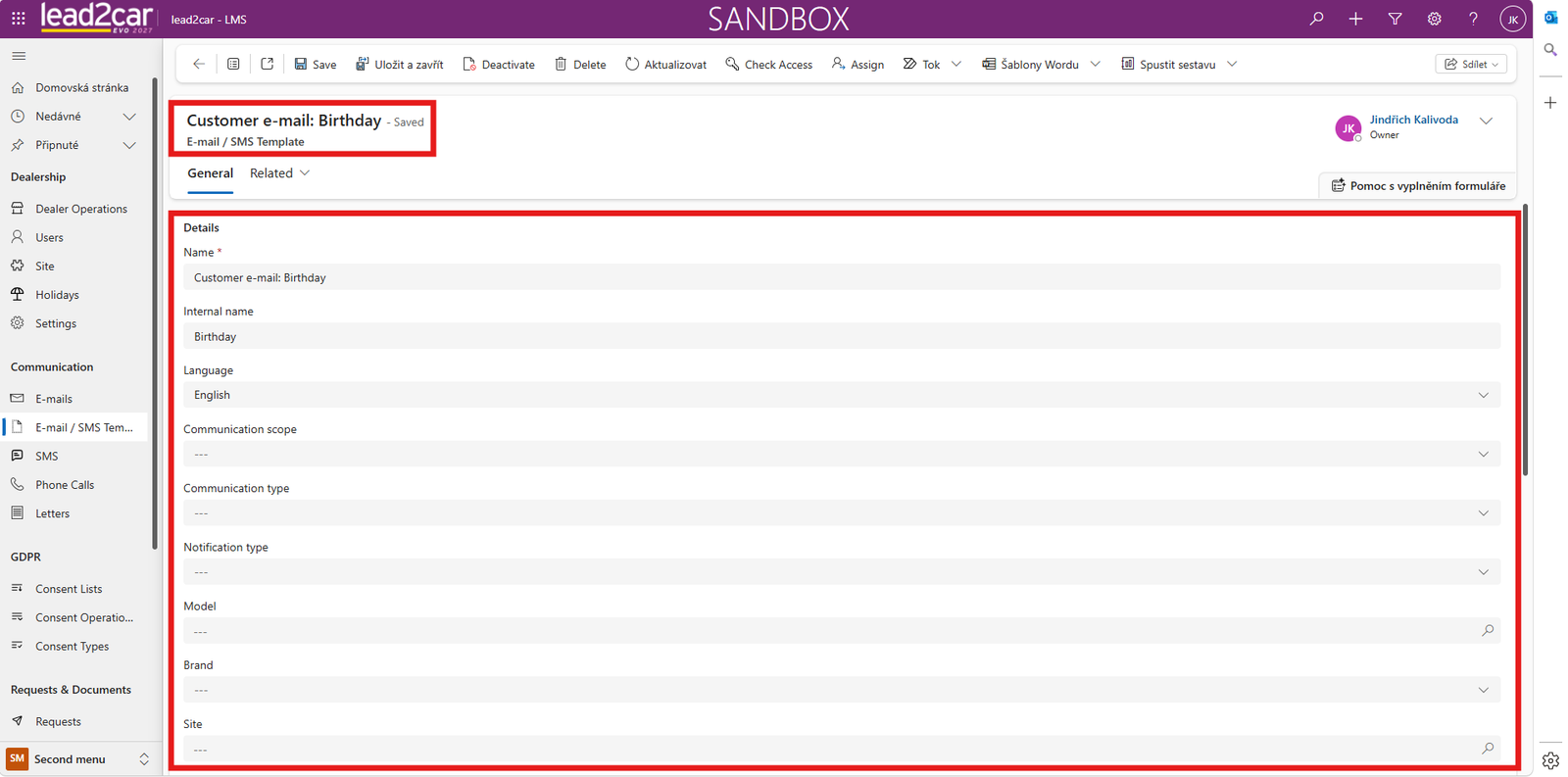
Editing the Subject and Content
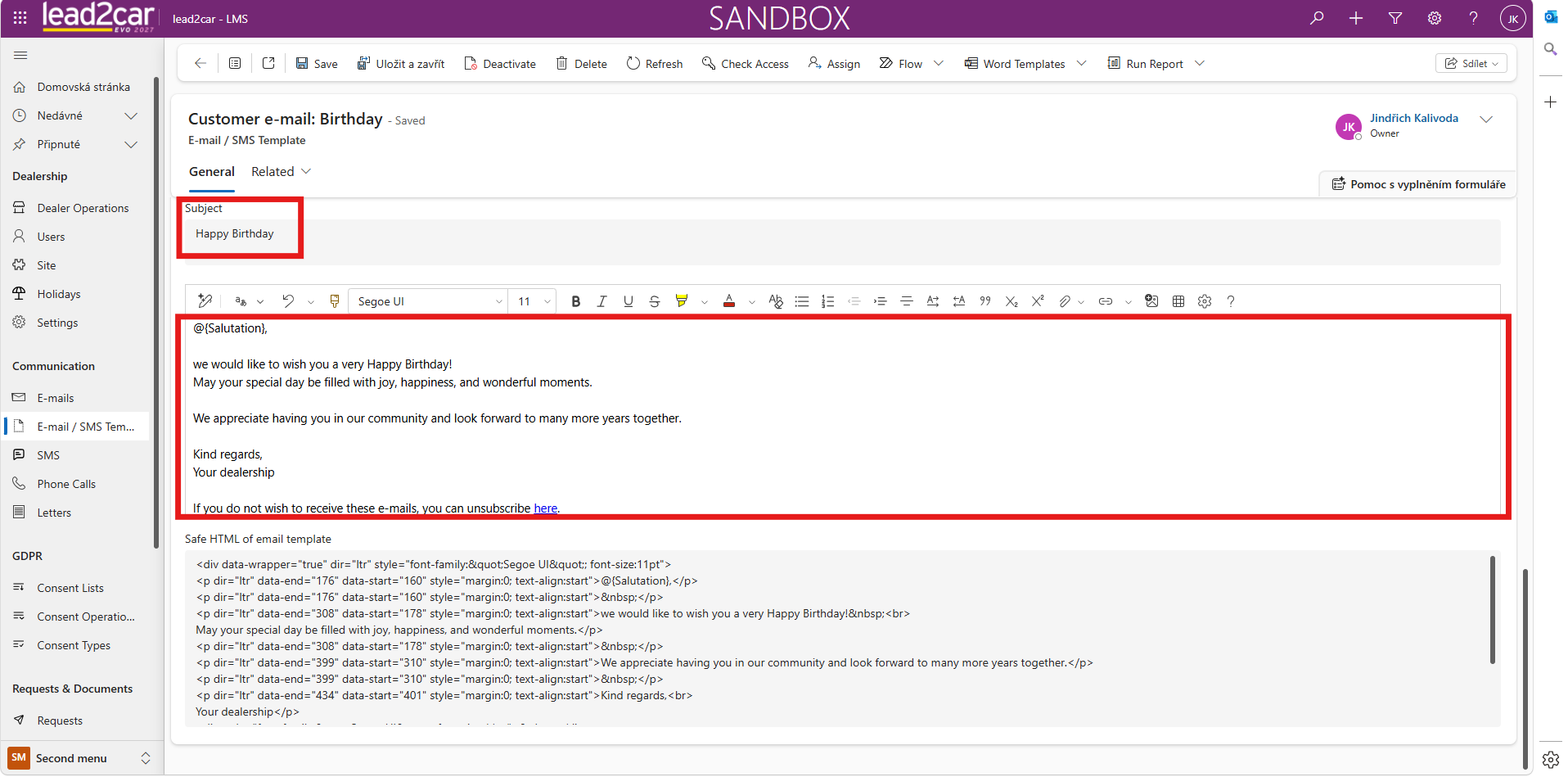
Before enabling automated communication, review and update the email subject and email content.
The default text is generic. Replace generic information with the dealership name, logo, signature and any other required details.
Dynamic Variables and Unsubscribe Link
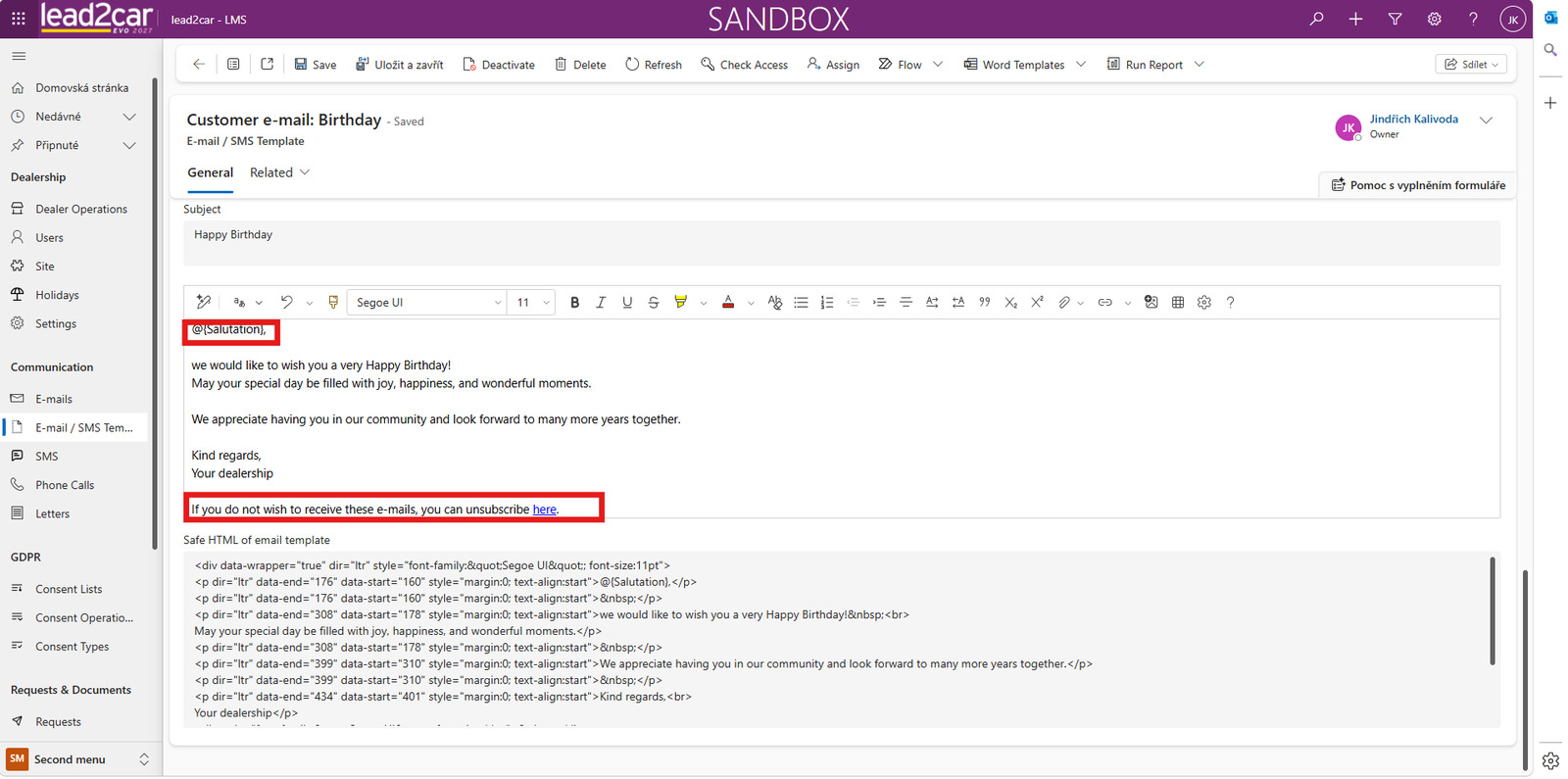
Email templates contain dynamic variables that are automatically populated with data stored in the system, such as the customer salutation, vehicle model or dealership branch.
It is recommended to keep these variables. The final unsubscribe section must remain because the link informs lead2car that the customer no longer wishes to receive automated communication.
Sending a Test Email
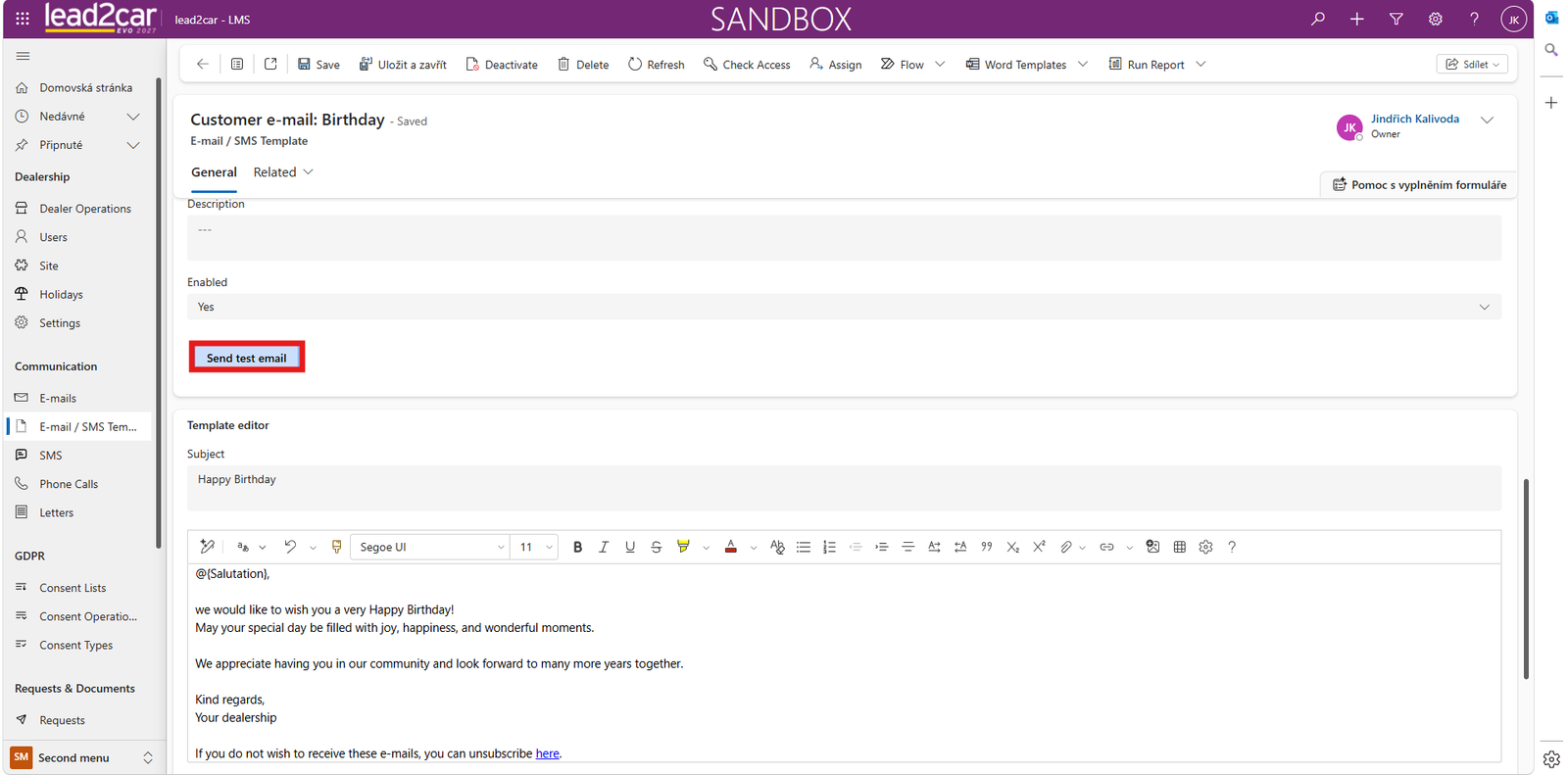
After completing the changes, use the Test Email button.
The test email is delivered to the user who starts the test. Verify the subject, content, formatting, dynamic information and unsubscribe link.
Enabling the Template
If the email is correct, set Enabled to Yes.
After the template is enabled, the system starts sending the corresponding communication to customers automatically according to the configured rules.