Imports overview
Imports are used to upload files into lead2car and create or update records based on the uploaded data.
To view existing imports, open the Imports section from the navigation menu.
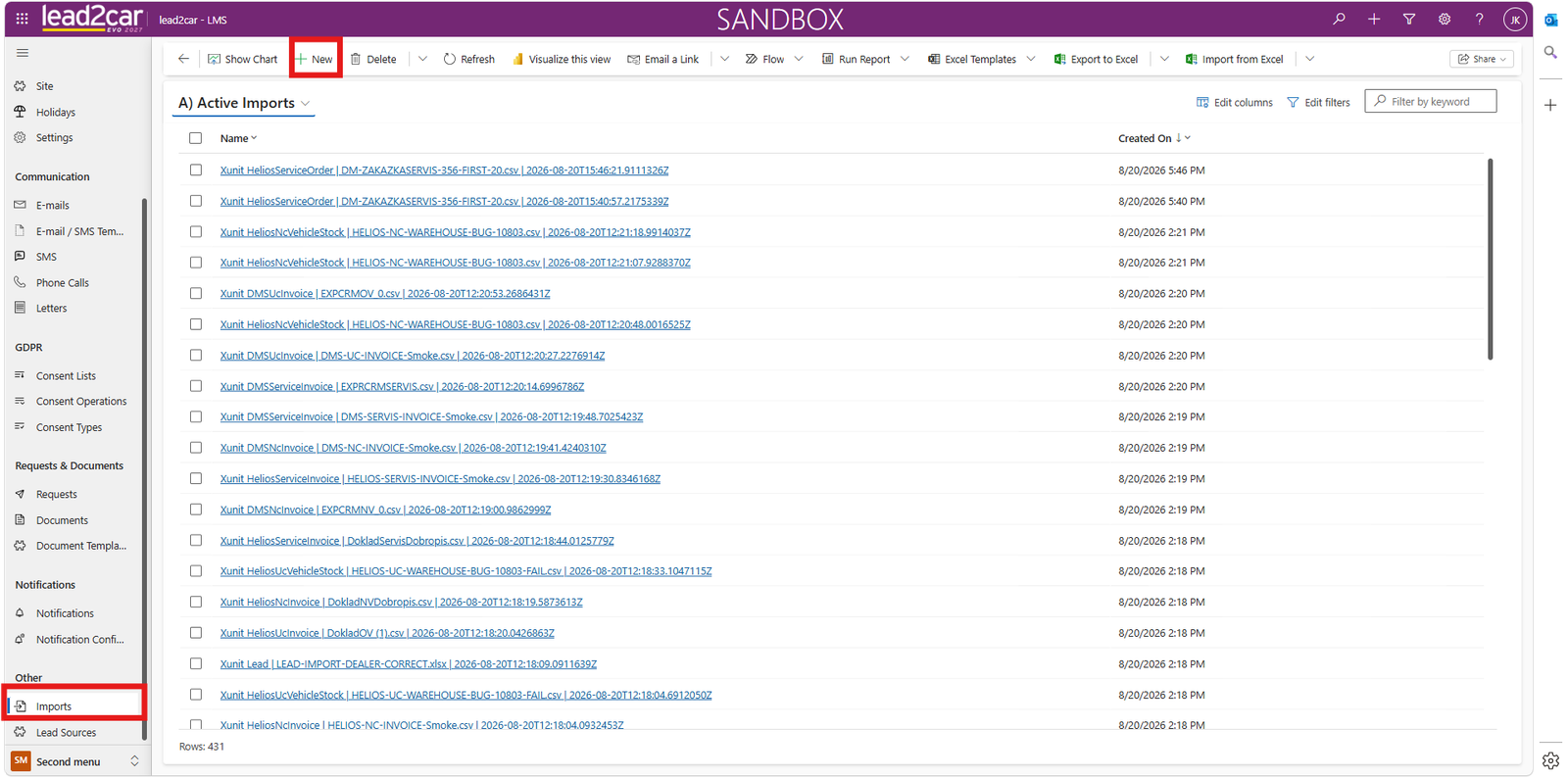
The import list displays all existing imports, including the import name and creation date.
To create a new import, click New in the command bar.
Create new import
After clicking New , a new import form opens.
Enter an import name that clearly describes its purpose, for example Lead Import or Equipment Import .
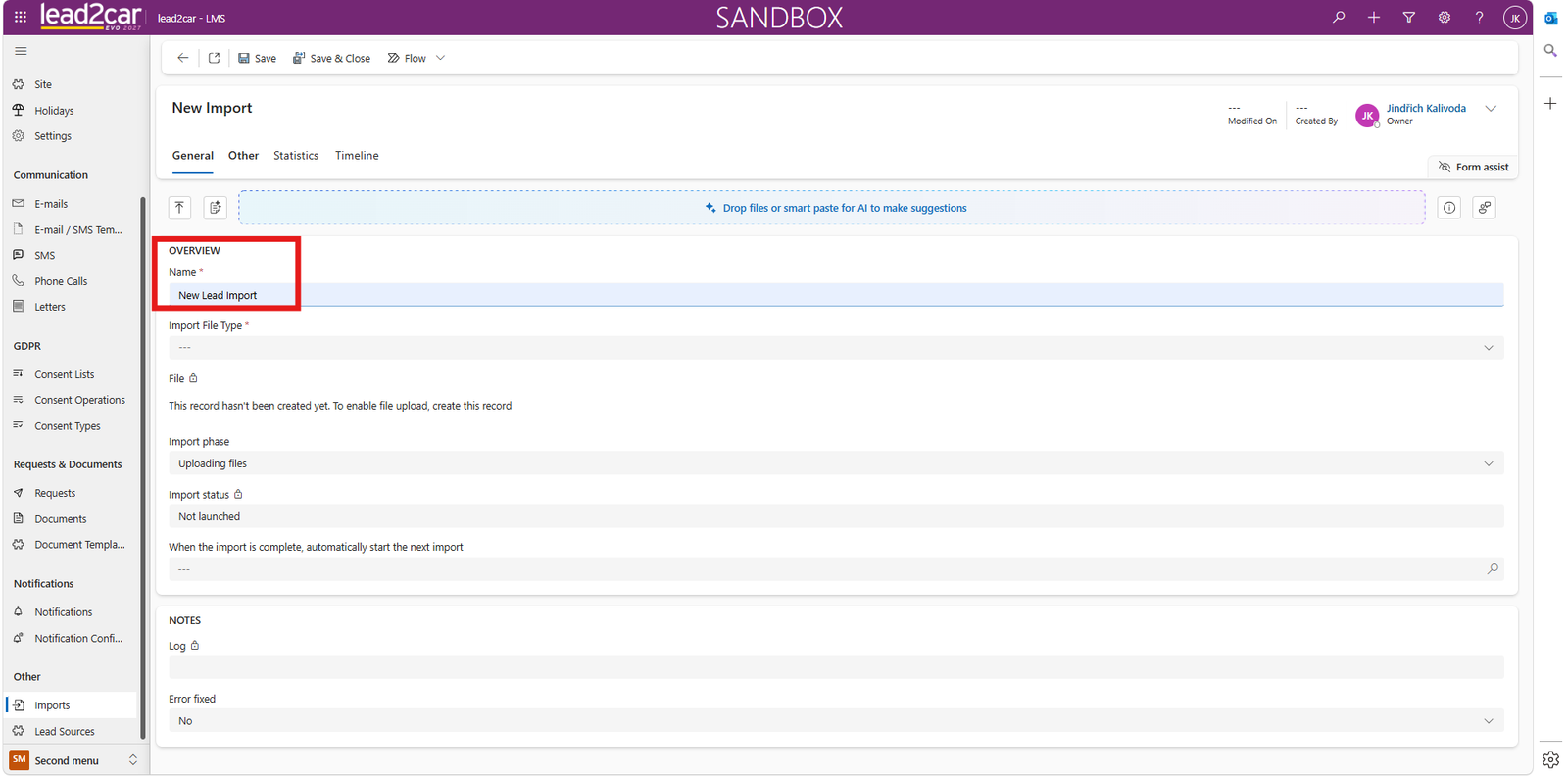
Select the required value in the Import File Type field. The selected import type determines which mapping tab becomes available after the import record is saved.
Save the import record.
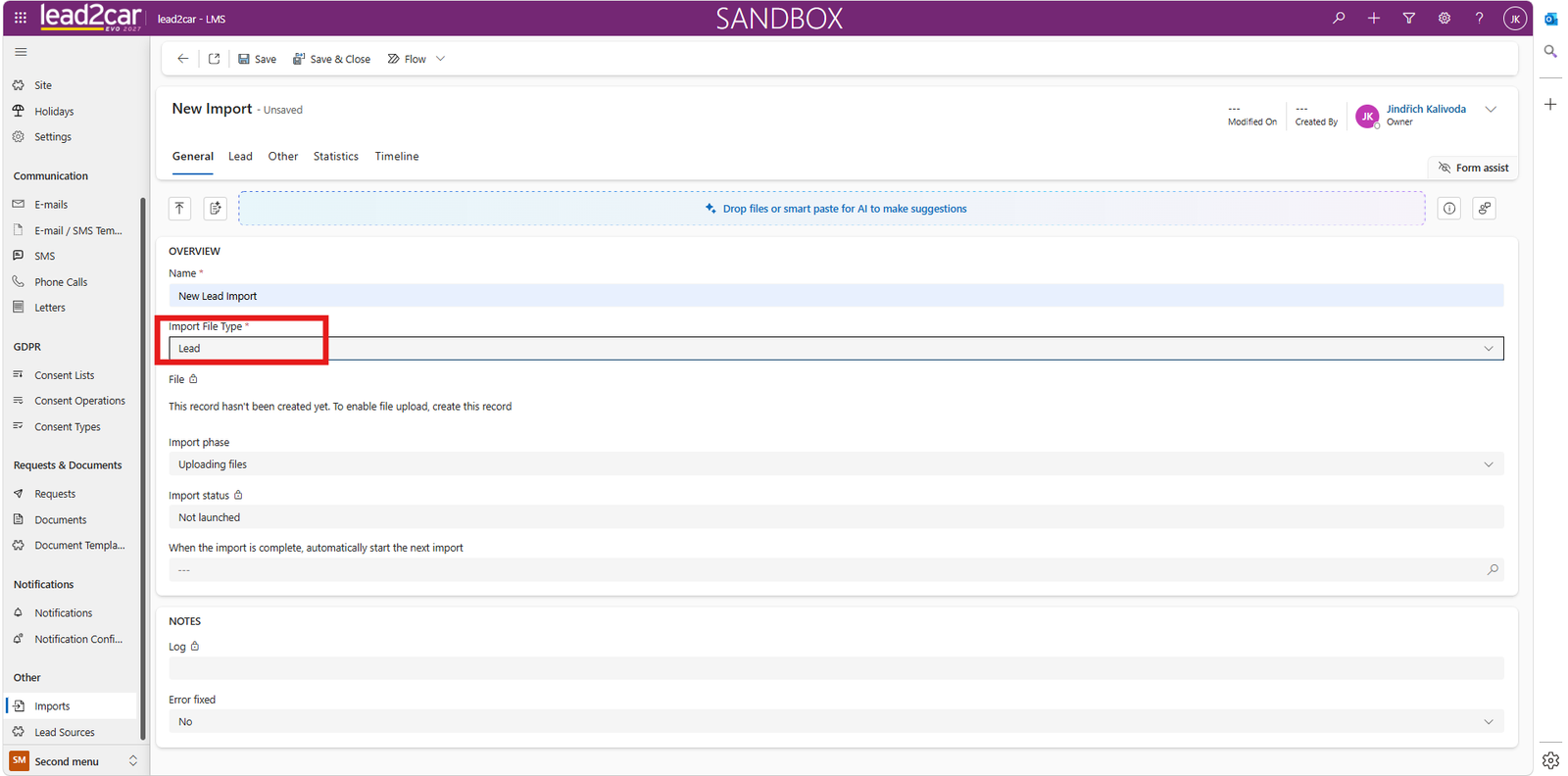
Open the new tab corresponding to the selected import type and configure the import mapping.
The mapping determines which columns from the source file contain the individual values that will be imported into lead2car.
Complete all required mapping fields according to the source file structure and save the record again.
After the completed mapping is saved, the File upload field becomes available.
Upload the source file into the File field. Once the file is uploaded, the import is ready for processing.
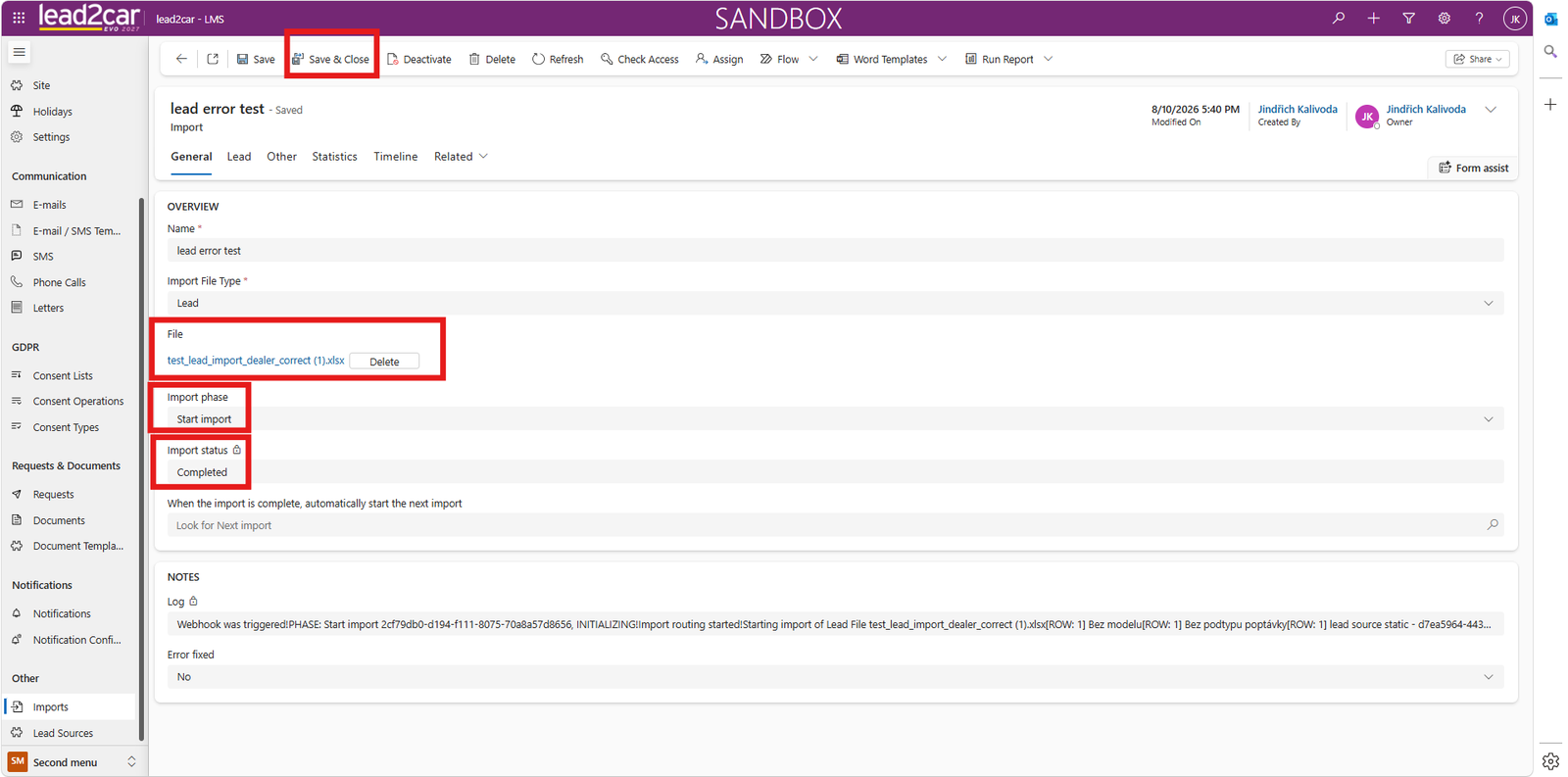
Lead import
Create a new import record and select Lead in the Import File Type field.
After saving the record, open the Lead tab.
The Lead tab contains mapping fields that define which columns from the imported file correspond to individual Lead fields in lead2car.
Map the columns according to the structure of the Excel file:
- First name – customer's first name
- Last name – customer's last name
- Email – customer's email address
- Phone number – customer's phone number
- Company name – company name, if applicable
- Registration number – registration number, if applicable
- Model – requested model
- Demand type – demand type information
- Demand subtype – demand subtype information
- Lead source – lead source
- Lead subject – lead subject
- Source campaign – source campaign, if applicable
- Date of origin – lead creation date, if applicable
If a value is identical for all imported records, use the corresponding static field instead of mapping an Excel column.
- Model (static)
- Demand type (static)
- Demand subtype (static)
- Lead source (static)
- Lead subject (static)
- Source campaign (static)
- Date of origin (static)
Save the completed mapping, return to the General tab and upload the Excel file into the File field.
Equipment and accessories import
Create a new import record and select the appropriate value in the Import File Type field.
After saving the record, open the tab corresponding to the selected import type and map the columns according to the Excel file structure.
Before preparing the import, verify that the source file follows the required structure.

The file should contain columns such as:
- code
- name
- description
- catalogCode
- categoryCode
- categoryName
- displayOrder
- imageUrl
- accessoryCategory
- price
- priceNoVat
Column names and values must be completed correctly so the system can process the imported file.
Save the completed mapping, return to the General tab and upload the Excel file into the File field.
The uploaded file is used to create new records or update existing equipment and accessory records in lead2car.